Copy trades from any wallet on Polymarket or Kalshi. Control sizing, filters, and trade direction. ⚙️

Creating a Copy Trade Task

1

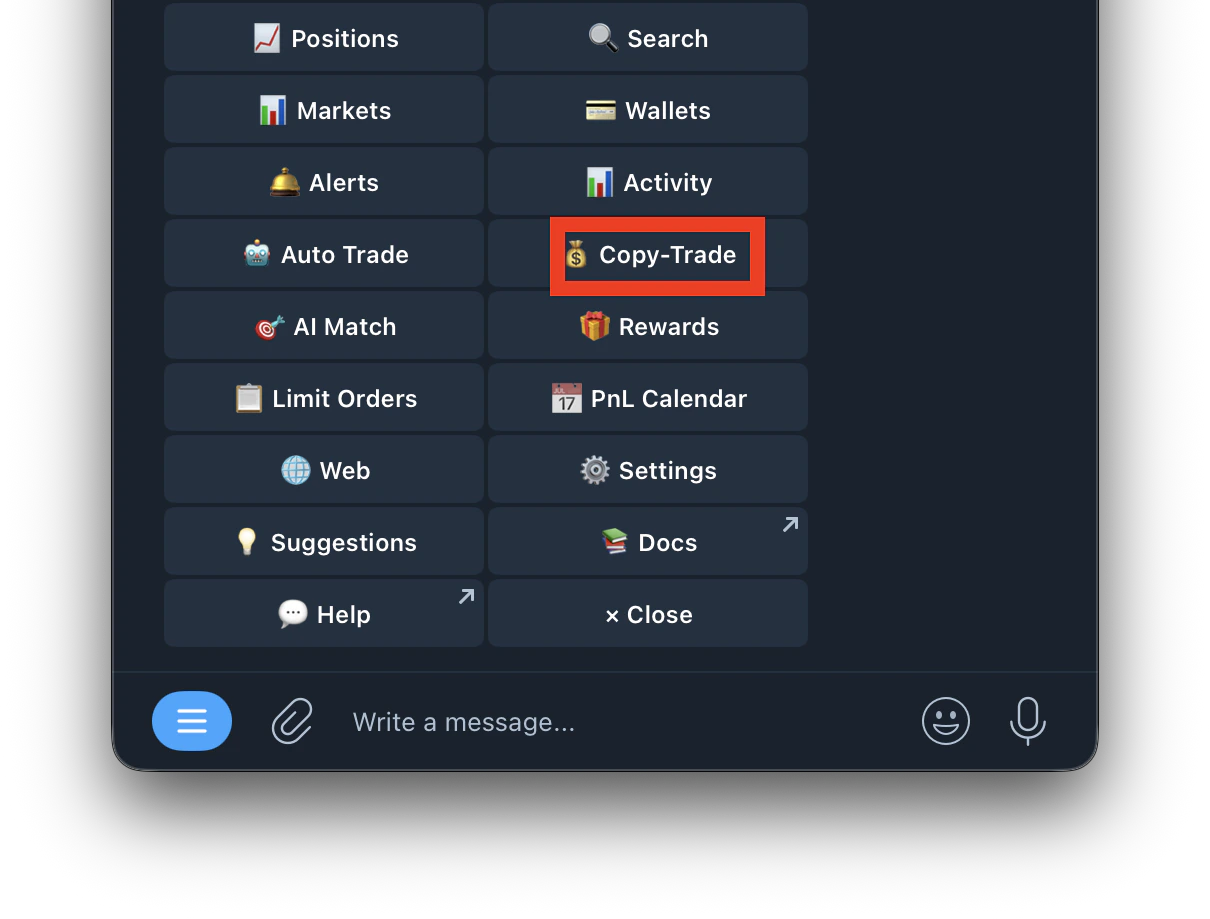
Press /start

2

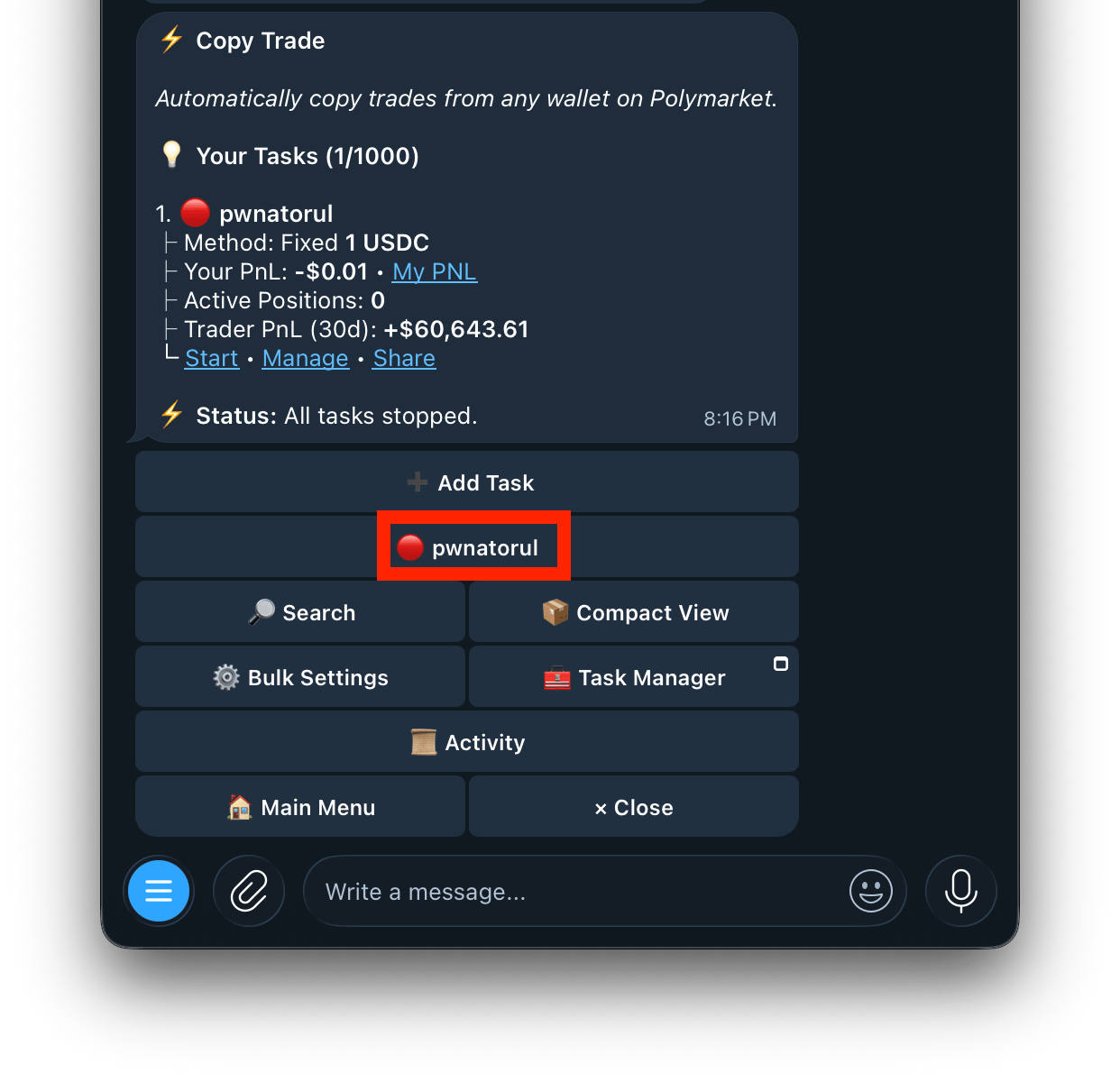
Tap Add Task

3

Choose your trading wallet

4

Enter the wallet address to copy

5

Set your buy amount

Minimum is $1.
6

Start the task ✅

Choose a sizing method

Buy a fixed amount on every copied trade. Leader size does not matter.

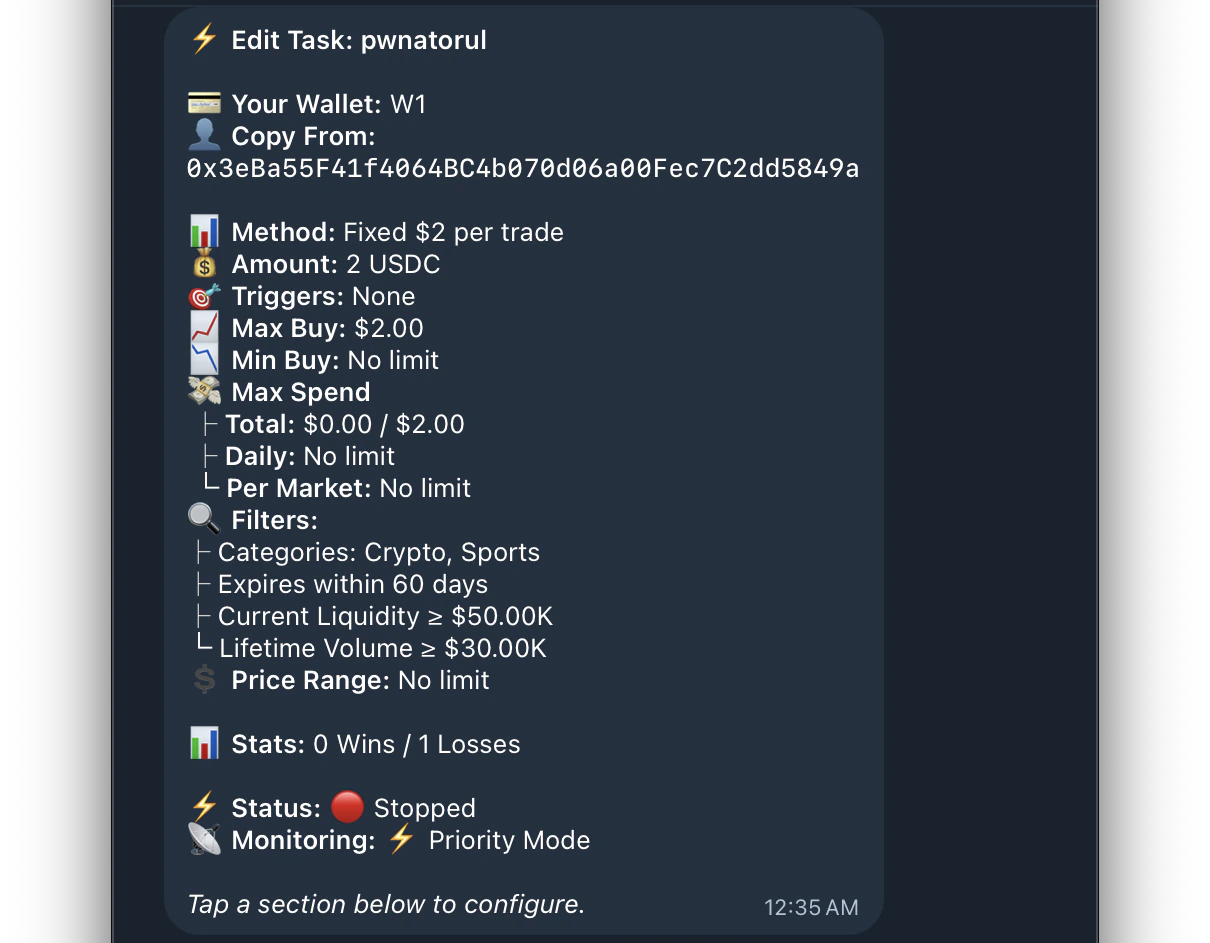
Filters

Use filters to control what gets copied and how it behaves.
Odds are represented as price from 1¢ to 100¢.
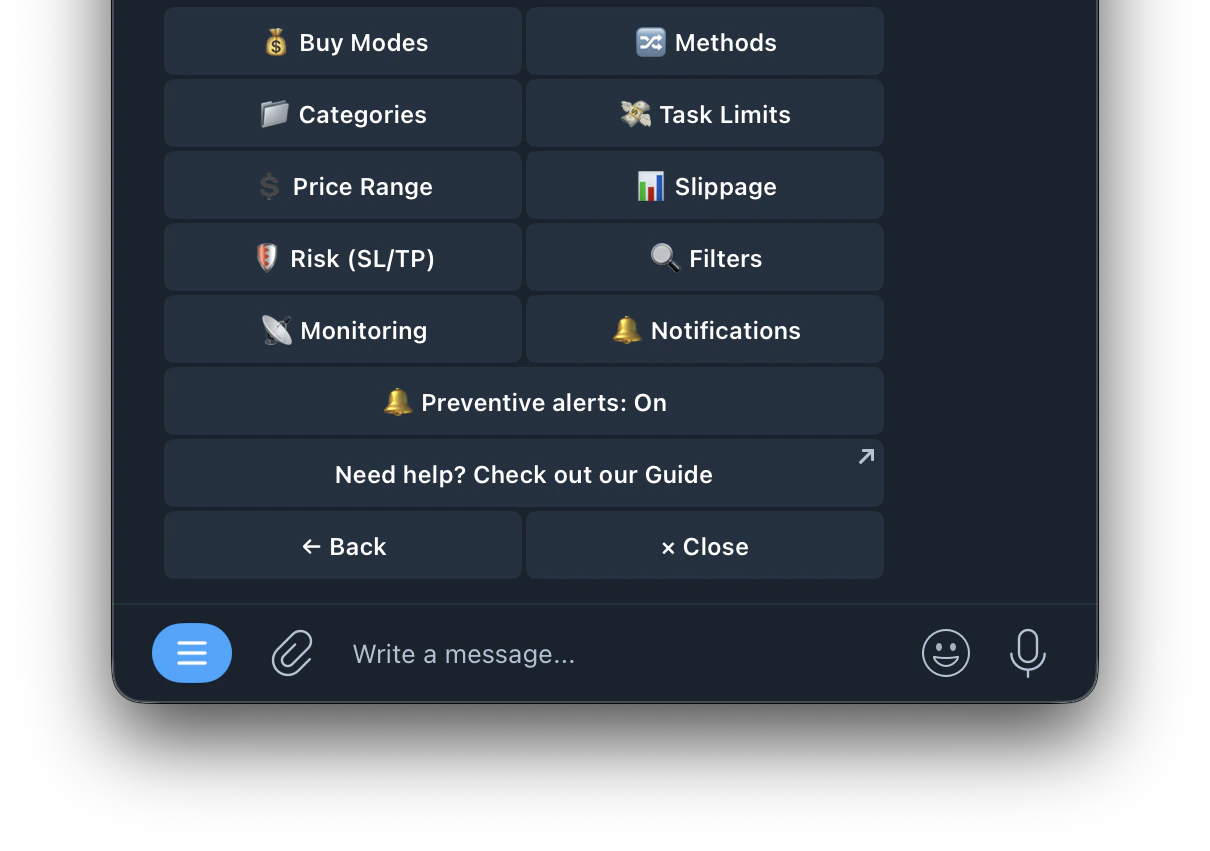
Configure the buy method and size limits for this task in this section
  • Fixed Buy Amount — Enable this and input a fixed amount to spend on every copied trade. Leader size does not matter.
  • Exact Buy Amount — Enable this to mirror the leader’s size exactly. If they buy $50, you buy $50.
  • % Based Buy Amount — Enable to buy a fixed percentage of the leader’s size. If you set 20% and they buy $50, you buy $10.
  • Portfolio Buy Amount — Enable to buy the same portfolio % into the trade as leader wallet.  Ratio: X — Input a ratio to apply to Portfolio weighting percentage. 
  • Max Buy — Hard cap on your copied buy size. Example: cap $25. Leader buys $100 → you buy $25.
  • Min Buy — The minimum amount to spend on a single trade. If a trade would be below this, it will be increased to this amount.
Control what action you take when the leader trades.
  • Follow Buys — Copy the target wallet’s buys.
  • Copy Sells — Copy the target wallet’s sells.
  • Buy on Sells — When the target wallet sells, place a buy instead.
  • Counter Trade — Invert direction: buy when they sell, sell when they buy.
  • Copy Sides — Choose whether to copy both sides of a market or only one. 
  • One Entry/Market — Choose whether to enter every unique market only once when copying. 
  • Price Match Mode — When enabled, every buy is treated as a limit order meaning it will only be go through at the exact price or lower than the leader wallets buy/sell.  When Price Match Mode is enabled, you can also add a Buy Offset – Offset adds a % buffer to improve fill rate. E.g. 5% buy offset = limit placed 5% above the trader’s price.
Control what markets you copy when the leader trades.
  • Health — Enable/disable trades triggered by health-related news.
  • Climate & Weather — Enable/disable trades triggered by climate and weather news.
  • World — Enable/disable trades triggered by global/world news.
  • Economics — Enable/disable trades triggered by economic news.
  • Pop Culture — Enable/disable trades triggered by pop culture news.
  • Financials — Enable/disable trades triggered by financial news.
  • Politics — Enable/disable trades triggered by political news.
  • Science & Technology — Enable/disable trades triggered by science and tech news.
  • Crypto — Enable/disable trades triggered by crypto-related news.
  • Companies — Enable/disable trades triggered by company news.
  • Transportation — Enable/disable trades triggered by transportation news.
  • Sports — Enable/disable trades triggered by sports news.
  • Mentions — Enable/disable trades triggered by direct mentions.
  • Reset (All) — Resets all category toggles back to their default state.
  • Max Spend — caps the total USDC spent across all buy orders for this task. The task is auto-disabled when the cap is reached.
  • Max Spend Per Market — Caps the USDC spent per side (Yes/No tracked separately). If a trader switches sides, the new side has its own budget. ^ You can also set a YES CAP (Maximum amount on YES transactions) or NO CAP (Maximum amount on NO transactions). Partial Fill — When enabled trades will be clamped to remaining budget on Market instead of being entirely skipped.
  • Daily Cap — Maximum amount the task can spend per day. Resets every 24 hours. 
  • One Entry/Market — Only enter each market once, ignores additional buys in the same market. 💲
  • Min Price — Only copy trades where the shares cost at least this much. 
  • Max Price — Only copy trades where the shares cost at most this much.
  • 10¢ - 90¢ — Set a filter for 10-90 cent odds.
  • 30¢ - 70¢ — Set a filter for 30-90 cent odds. 📊
Slippage is the maximum price difference you’ll accept between the expected price and the actual price you get filled in at. A higher slippage = more trades likely to fill, but might cost slightly more. Useful for high volality trades. 
  • Stop Loss — Automatically sell if a position drops below a threshold (Price or Percentage). 
  • Take Profit — Automatically sell if a position goes above a threshold (Price or Percentage). 
  • Trigger Range — Filters trades by how much the trader spends. Minimum Trigger which will only copy when the trader spends at least this much or Maximum Trigger which will only copy when the trader spends less than this. 
  • Market Quality — Add minimum filters for Volume and Liquidity to filter markets.
  • Time Filters — Add Max Days out filter to copy only markets that close with that many days AND/OR Skip Expired which skips markets that have already passed their end date but have not resolved yet. 
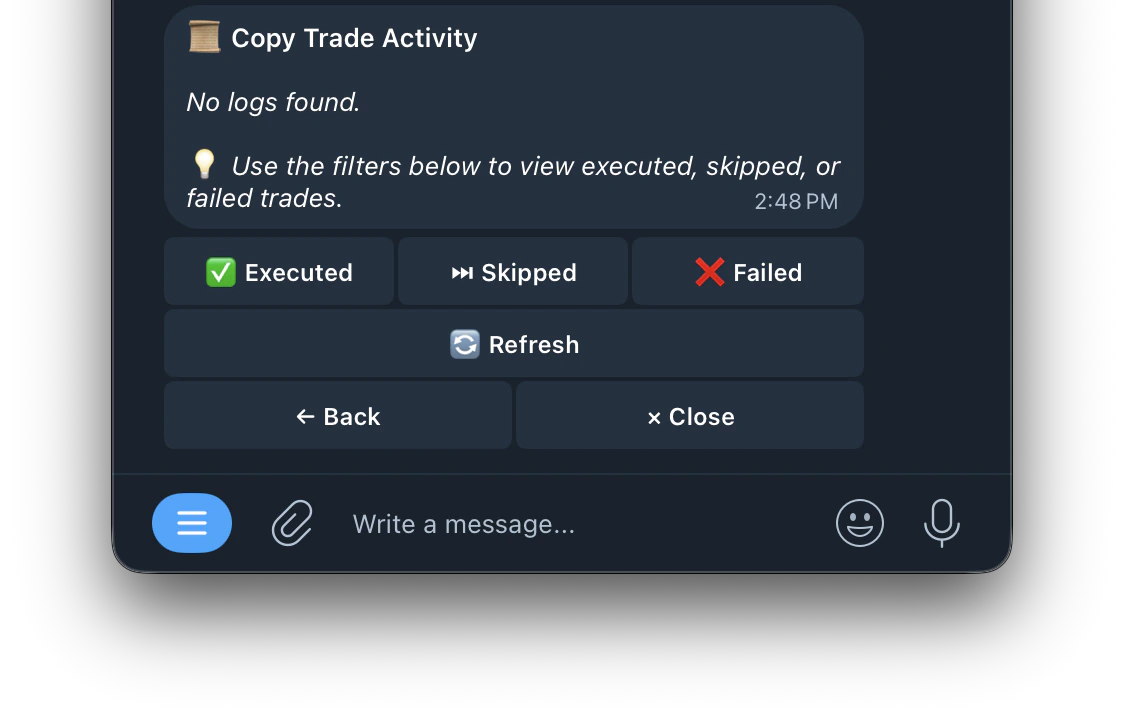
We recommend muting notifications and viewing all history of trades inside of the Activity section on copy trade settings.This prevents Telegram Rate Limits when copying volatile and very active wallets.
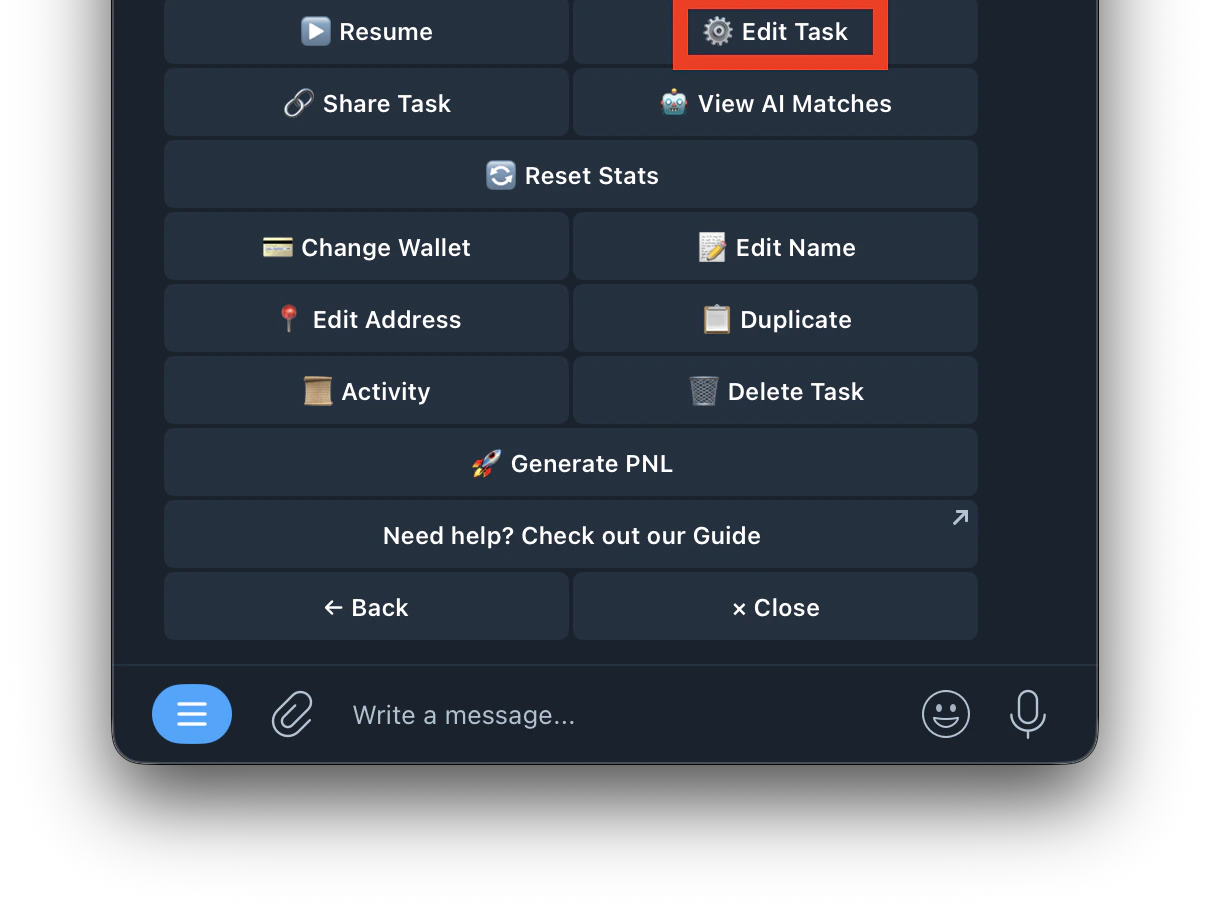
During task creation the bot will ask you if you wish to create a Take Profit or Stop Loss. These can be edited inside of the copytrade settings.

Stop Loss

Automatically sell if a position drops below a threshold. Protects you from large losses.

Applies per execution — only sells the shares bought in that trade, not your entire position.

Take Profit

Automatically sell if a position rises above a threshold. Locks in your gains.

Applies per execution — only sells the shares bought in that trade, not your entire position.