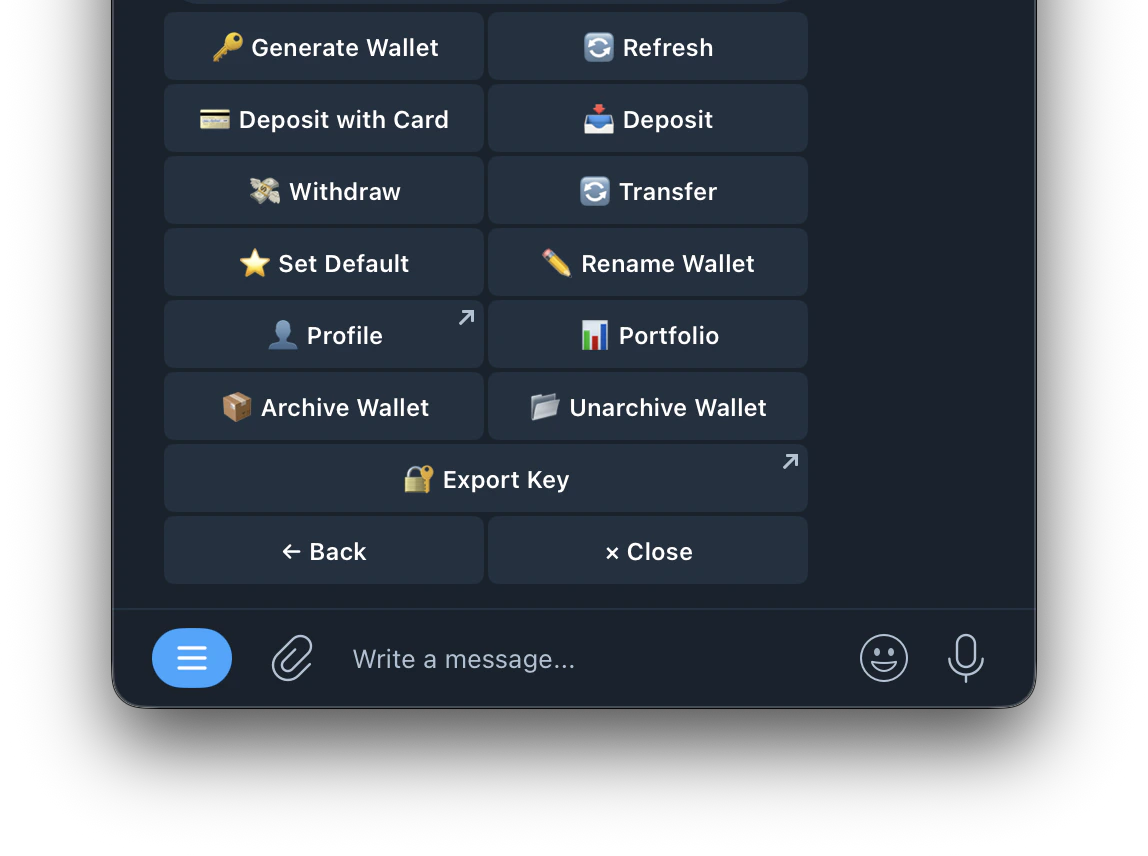
| 🔑 Generate Wallet | Create a new Kreo wallet. You can have multiple wallets (W1, W2, W3, etc.) |
| 🔄 Refresh | Update your wallet balance to show the latest amount |
| 💳 Deposit with Card | Buy crypto with your debit/bank card via Coinbase and auto-bridge to your wallet. See Deposit with Card page for full guide |
| 📥 Deposit | Deposit crypto directly or via bridge from another chain. See Deposit with Crypto page for full guide |
| 💸 Withdraw | Withdraw funds from your wallet to an external address |
| 🔁 Transfer | Transfer funds between your Kreo wallets |
| ⭐ Set Default | Set this wallet as the default for all buys and sells. Also determines which wallet shows in Hub bot > Wallet Manager |
| ✏️ Rename Wallet | Give your wallet a custom name for easy identification |
| 👤 Profile | View your wallet’s trading profile on Polymarket |
| 📊 Portfolio | View your wallet’s full trading stats, PnL history, and position summary |
| 📦 Archive Wallet | Hide a wallet you no longer use. Withdraw funds first — archived wallets can’t trade. Can be restored anytime |
| 📂 Unarchive Wallet | Restore a previously archived wallet |
| 🔑 Export Key | Export your private key via Kreo Hub bot > Wallet Manager |