Documentation Index

Fetch the complete documentation index at: https://docs.kreo.app/llms.txt

Use this file to discover all available pages before exploring further.

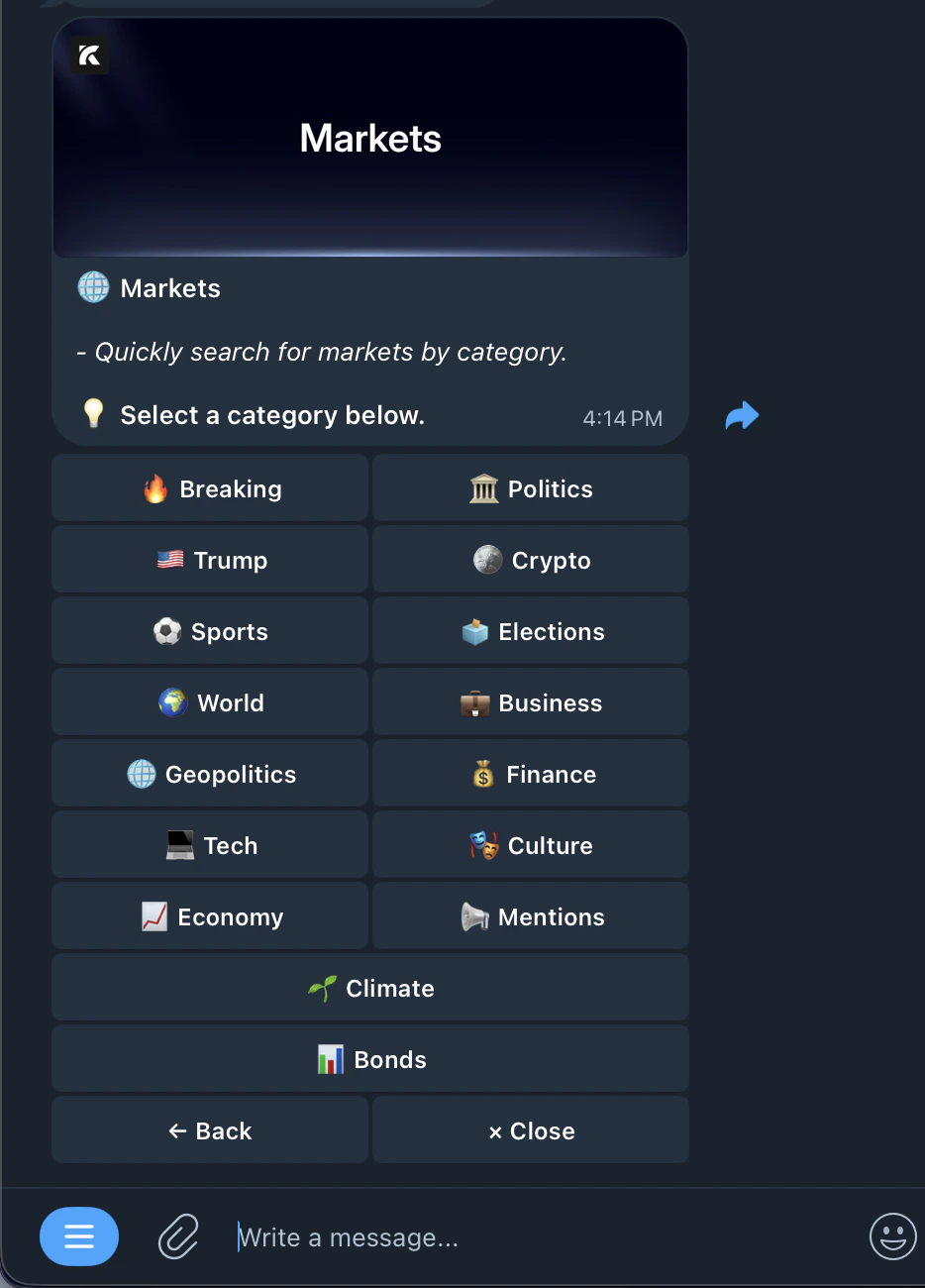
Browse and discover markets by category. Find trending events and trade directly.
How to Access
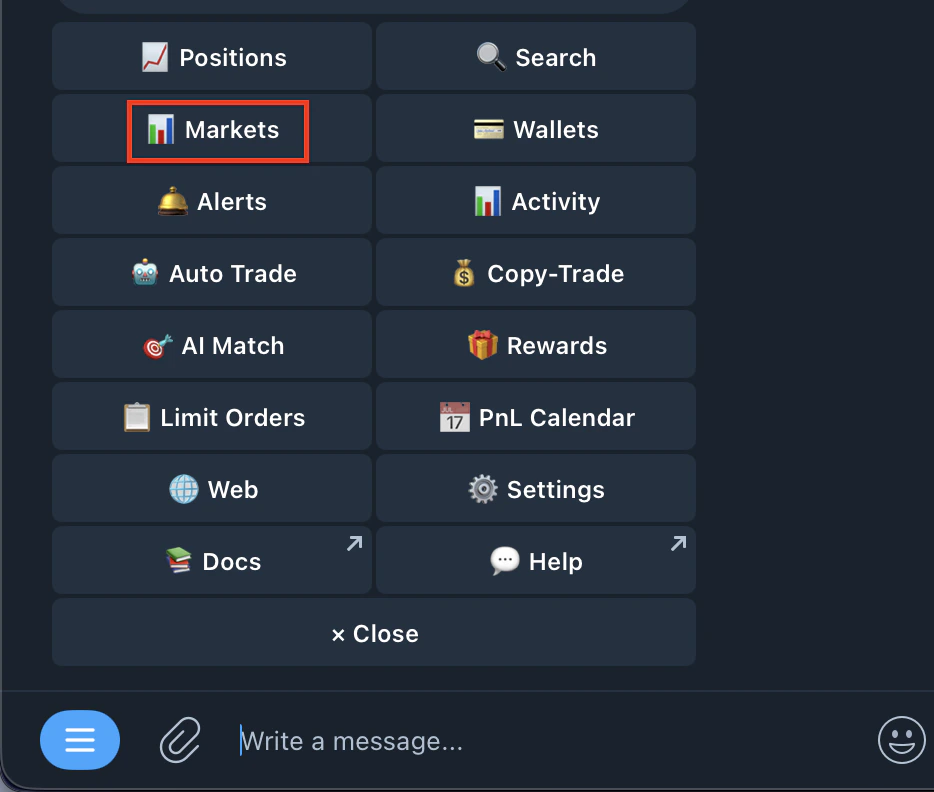
Type /markets or tap Markets from the /start menu.
Screenshot 2026 04 18 At 4 30 35 PM
Categories
Browse markets by topic:
Screenshot 2026 04 18 At 4 32 27 PM
Tap any category to see the latest markets in that topic. Sorting Options
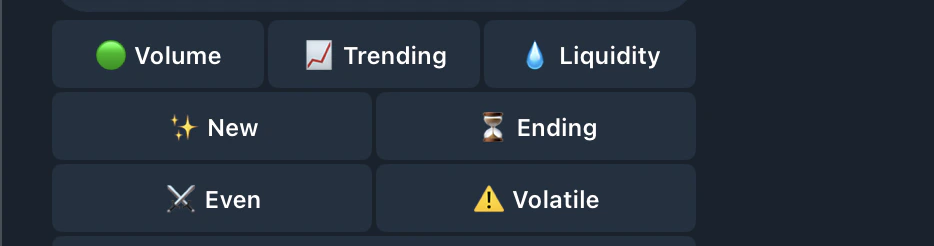
Once inside a category, sort markets by:
Screenshot 2026 04 18 At 4 33 31 PM
ButtonsFunction
VolumeMarkets with the highest trading volume
TrendingMarkets with the most activity right now
NewRecently created markets
EndingMarkets closest to resolution
EvenMarkets with odds near 50/50
VolatileMarkets with the biggest price swings
Market Detail View
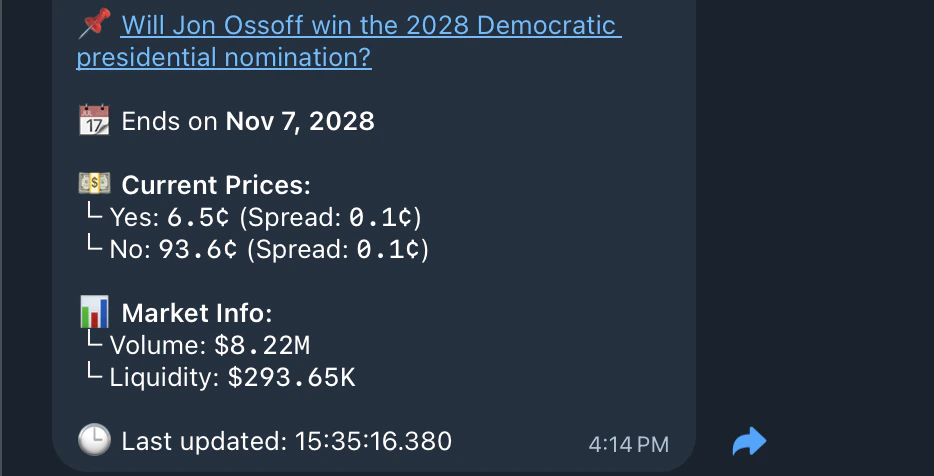
Tap any market to see full details:
Screenshot 2026 04 18 At 4 36 11 PM
NameWhat it means
Market nameThe market being predicted
πŸ“† End dateWhen the market resolves
πŸ’΅ Current PricesYES and NO prices with spread
πŸ“Š Market InfoVolume and liquidity
πŸ•’ Last updatedTimestamp of latest data
Trading Buttons
From any market detail view you can:
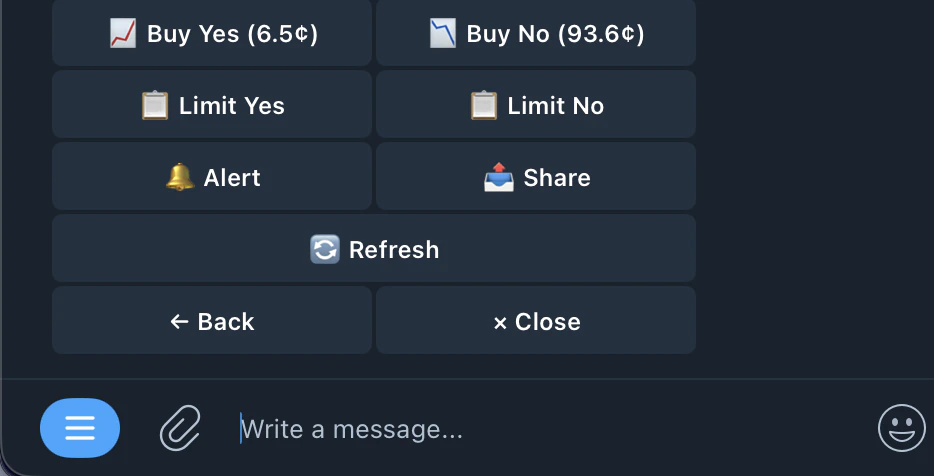
Screenshot 2026 04 18 At 4 36 54 PM
ButtonsFunction
Buy YesBuy YES shares, betting the outcome happens
Buy NoBuy NO shares, betting the outcome doesn’t happen
πŸ“‹ Limit YesPlace a limit buy order on YES at your chosen price
πŸ“‹ Limit NoPlace a limit buy order on NO at your chosen price
πŸ”” AlertSet a price alert on this market. Get notified when the price hits your target. See the Price Alerts page for details on how to set up alerts
πŸ”— ShareGenerate a shareable link for this market
πŸ”„ RefreshRefresh market data to show latest prices
  • Use sorting options to find the best opportunities
  • Check volume and liquidity before trading β€” higher is better for cleaner fills
  • Set alerts on markets you’re watching but not ready to trade yet
  • You can trade directly from any market view without going to /search