Documentation Index

Fetch the complete documentation index at: https://docs.kreo.app/llms.txt

Use this file to discover all available pages before exploring further.

Manage all your copy trade tasks in one seamless mini-app inside Telegram.
How to Access
  1. Type /copytrade or tap Copy Trade from /start
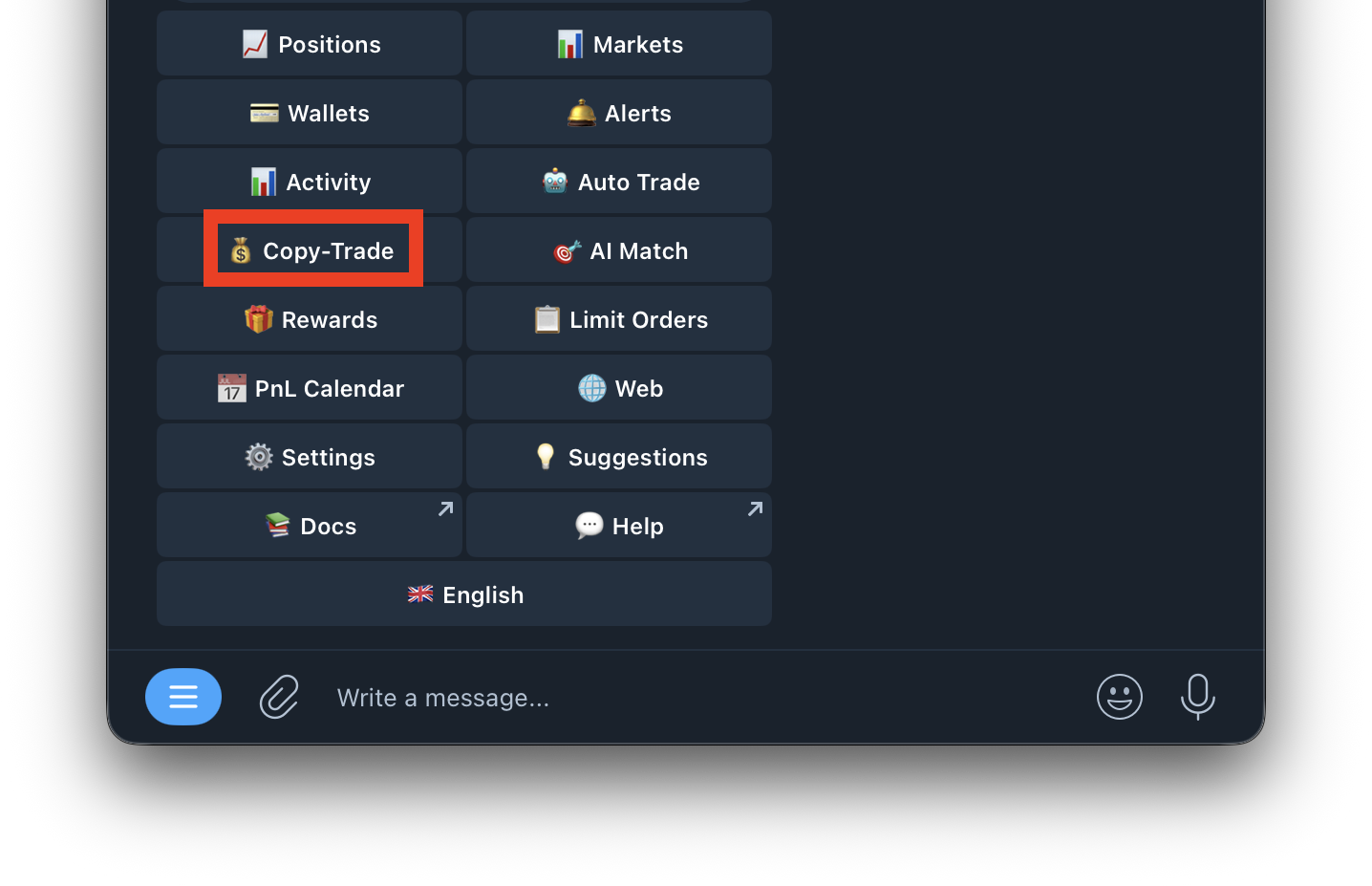
    Screenshot 2026 05 10 At 1 26 42 PM
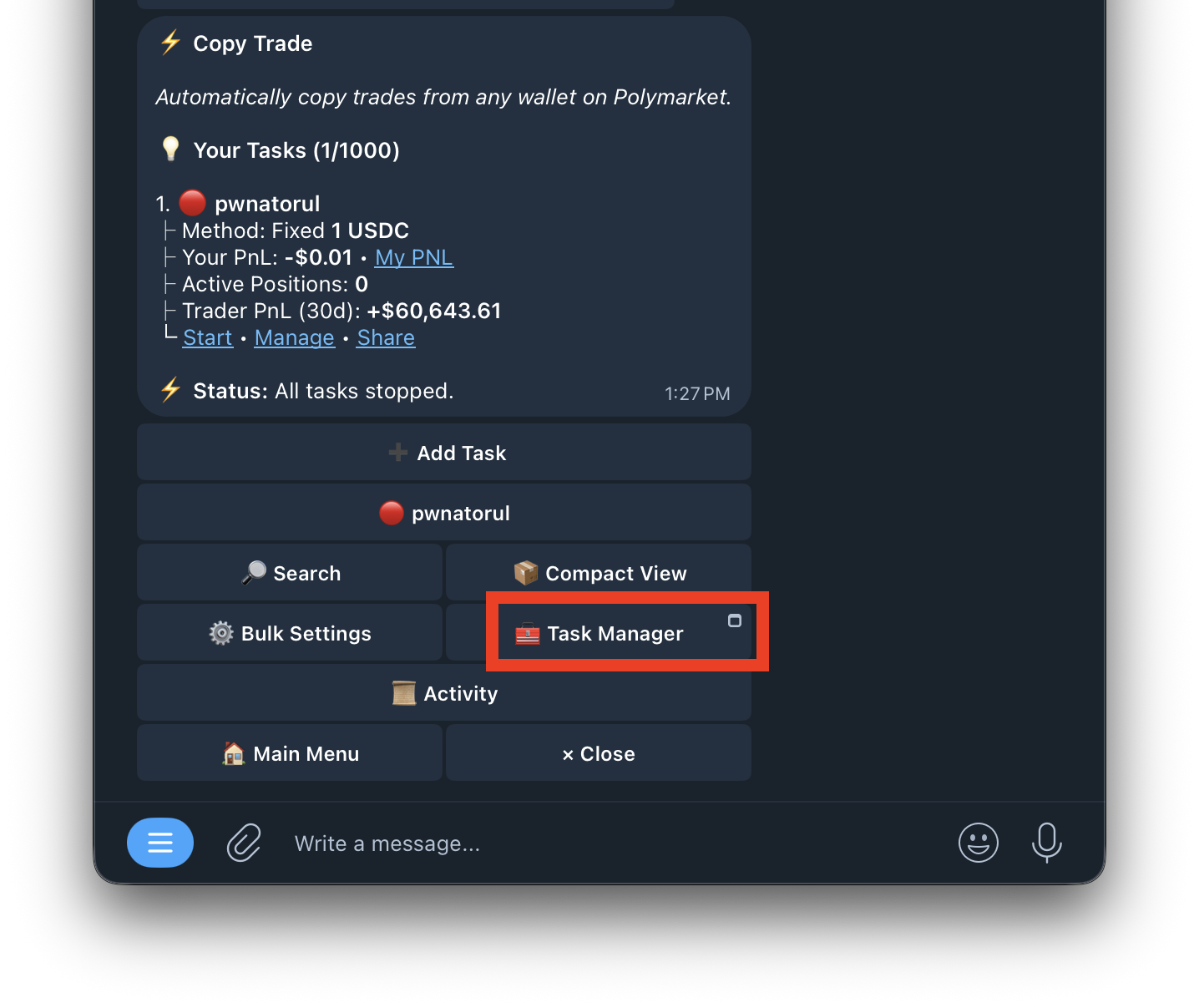
  2. Tap Task Manager
    Screenshot 2026 05 10 At 1 27 51 PM
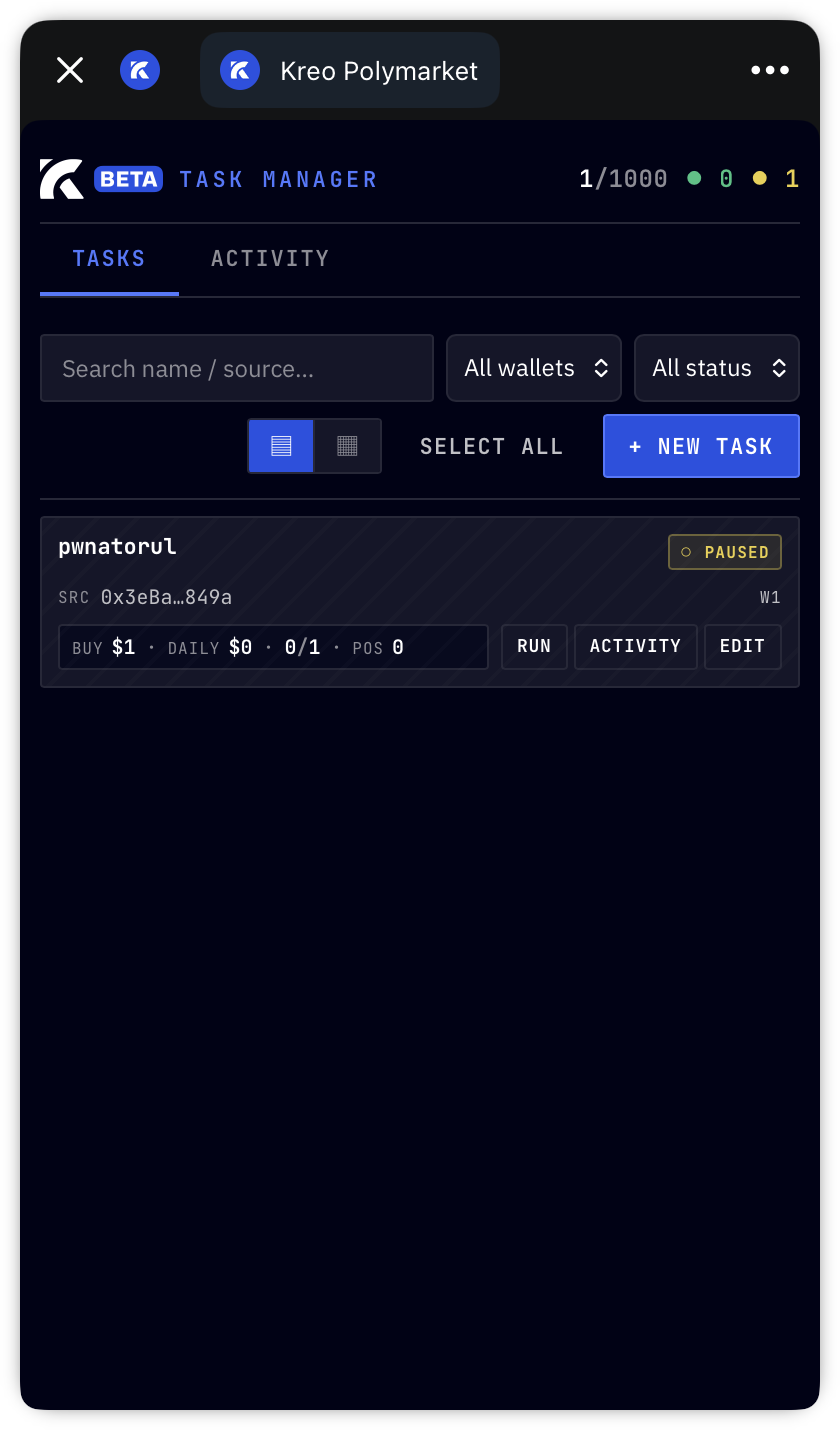
  3. The mini-app opens inside Telegram
    Screenshot 2026 05 10 At 1 29 36 PM

Task Manager UI At the top you’ll see a summary:
ElementWhat it shows
1/1000Number of active tasks out of your 1,000 task limit
🟢 0Number of currently running tasks
🟡 1Number of paused tasks

Navigation Tabs
TabWhat it shows
TasksView and manage all your copy trade tasks
ActivityView global trade activity across all tasks

Filter Options
FilterWhat it does
All Wallets / W1 / Wallet 2Filter tasks by which wallet they’re using
All Status / Active / PausedFilter tasks by whether they’re running or paused

View Options
ButtonWhat it does
List ViewDisplay tasks in a detailed list format
Compact ViewDisplay tasks in a condensed grid format

Task Actions
ButtonWhat it does
Select AllSelect all tasks for bulk actions
+ New TaskCreate a new copy trade task from the mini-app

Individual Task Card Each task shows:
FieldWhat it shows
Task NameName of the task (e.g. pwnatorul)
StatusRunning or Paused
SRCSource wallet being copied (abbreviated)
W1Which Kreo wallet the task is using
BUY $1Buy amount per trade
DAILY $0Amount spent today
0/1Trades executed / total trades
POS 0Number of open positions from this task
Task Buttons
ButtonWhat it does
RUNStart the task if it’s paused
ACTIVITYView trade history for this specific task
EDITOpen the full task settings to edit