
Smart Wallets is like the Wallet Tracker, but curated. We scrape and track high-signal “whale” wallets and surface their trades first. Use it to follow direction, spot momentum, and copytrade faster and better.
1
Open Smart Wallets and scan the feed
The page is a scrolling feed of markets with whale activity. New whale fills show up in real time.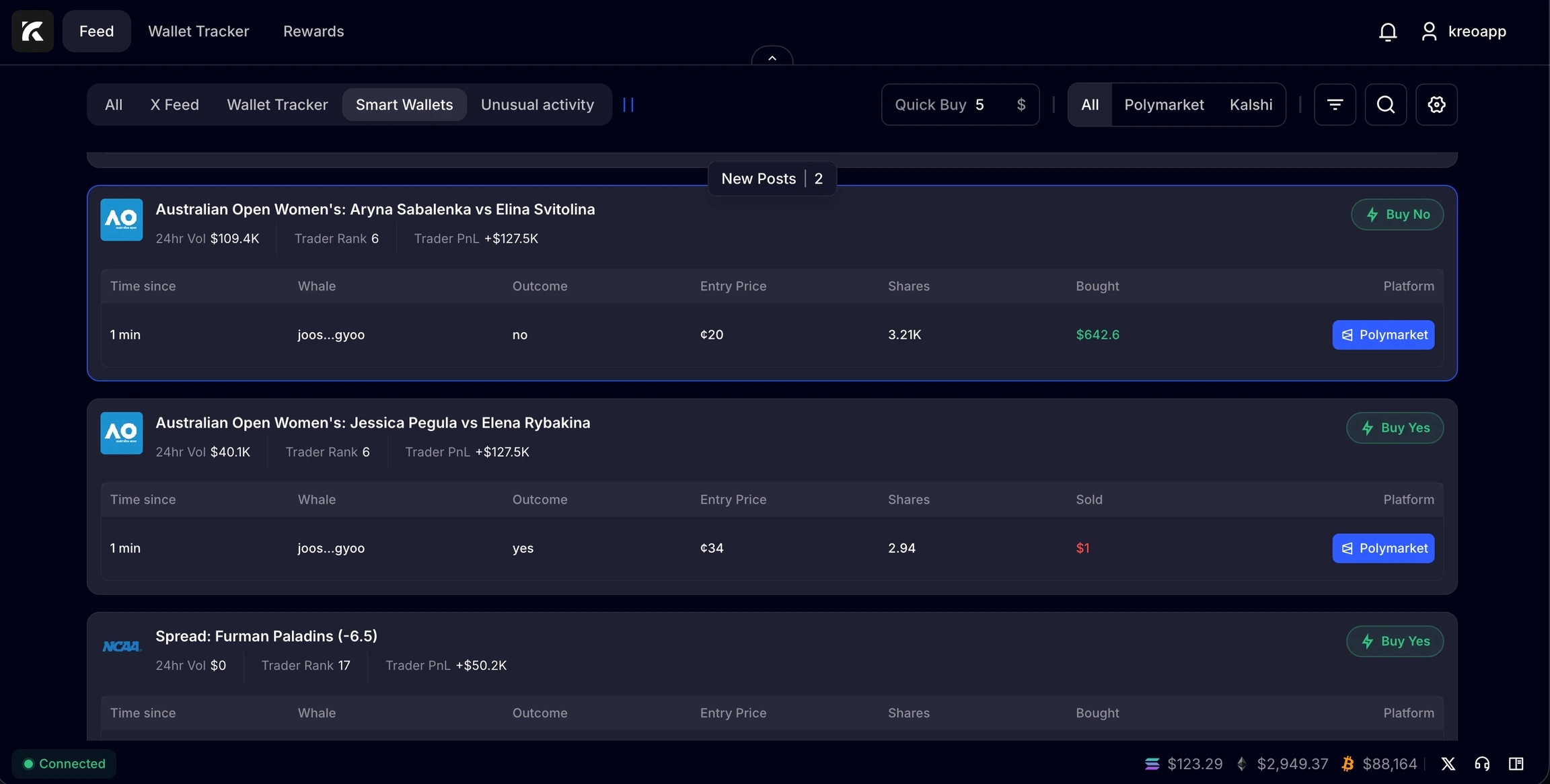
2
Use filters to focus the signal
Use the top bar to control what you see:
- Platform filters (ex: Polymarket / Kalshi).
- Search to jump to a topic or market fast.
- Any additional filters to reduce noise.
3
Read the market card at a glance
Each market card is a compact summary plus whale actions. You’ll typically see:
- Market title
- 24h volume
- Whale/trader stats like Trader Rank and Trader PnL (when available)
- A fast action button (Buy Yes / Buy No)
4
Understand the whale activity table
Each row is a detected fill from a tracked whale wallet. This answers: “Which whales are taking a side, right now?”Common columns you’ll use:
- Time since: recency signal.
- Whale: the tracked wallet identity.
- Outcome: what they bought (Yes/No).
- Entry Price: the price they paid.
- Shares: size of the position.
- Bought/Sold: the direction and size of the fill.
- Platform: where it happened.
5
Set Quick Buy for copytrading
Set Quick Buy to your default order amount. This is what the webapp uses for fast buys from Smart Wallets.
6
Execute inside the webapp
Use Buy Yes / Buy No on the market card. The goal is to go from whale fill → your trade in seconds.