> ## Documentation Index
> Fetch the complete documentation index at: https://docs.kreo.app/llms.txt
> Use this file to discover all available pages before exploring further.
# Stop Loss settings
> Access Stop Loss settings from the **Advanced** menu in your task. When the price drops to your stop level your position will be sold automatically to limit your losses.
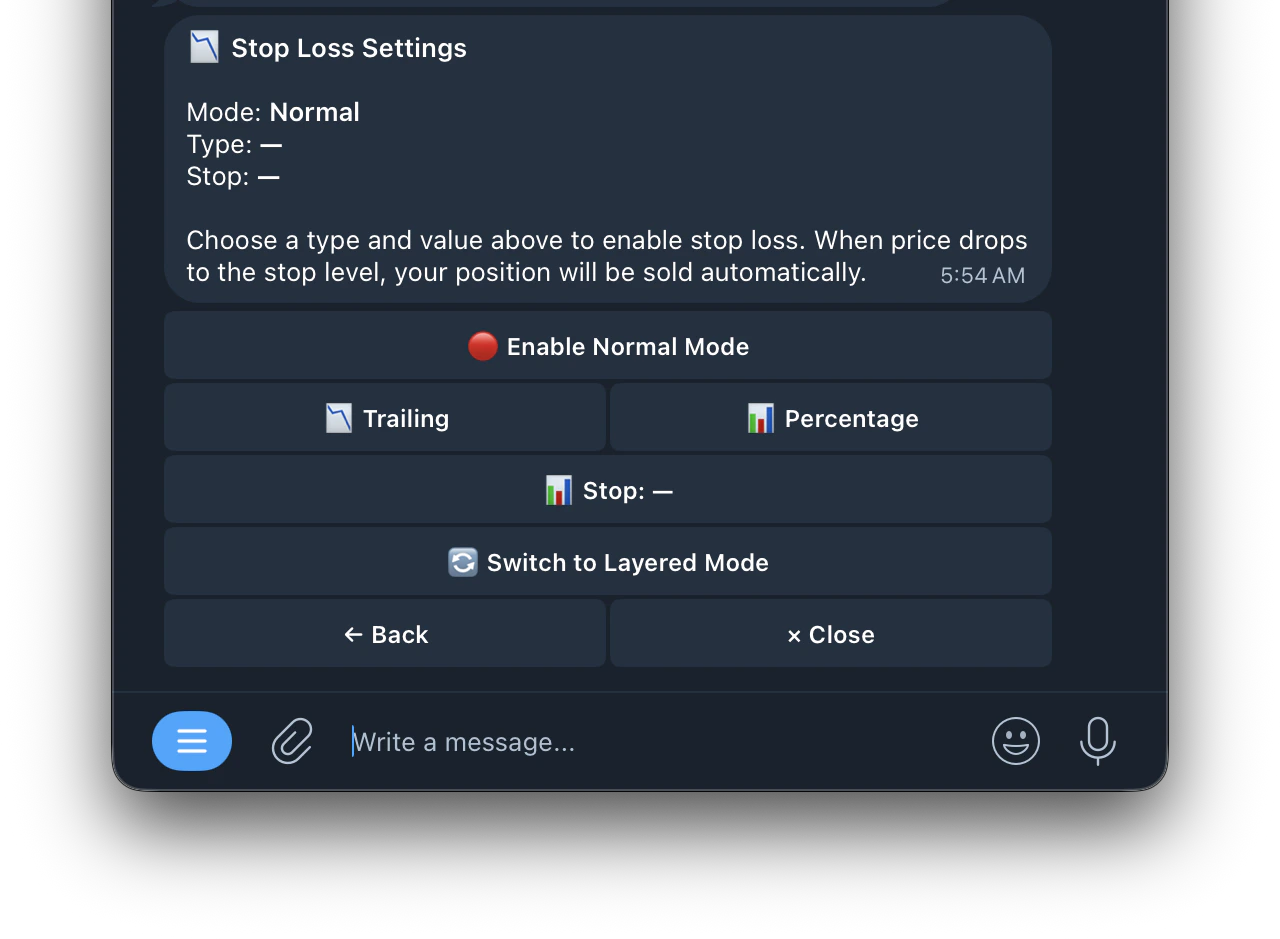 In Normal Mode you set a single stop level at which your position will be sold.
**Settings:**
* **Enable Normal Mode**: turn Stop Loss on or off
* **Trailing**: the stop level follows the price up as it rises and triggers only if price falls back by your set %
* **Percentage**: set a fixed % drop from your entry price to trigger the stop loss
* **Stop**: your current stop loss level
* **Switch to Layered Mode** — switches to Layered Stop Loss for staged exits
Layered Stop Loss exits your position in stages as the price drops, instead of selling everything at one stop level. This gives you more control over how you exit a losing position.
In Normal Mode you set a single stop level at which your position will be sold.
**Settings:**
* **Enable Normal Mode**: turn Stop Loss on or off
* **Trailing**: the stop level follows the price up as it rises and triggers only if price falls back by your set %
* **Percentage**: set a fixed % drop from your entry price to trigger the stop loss
* **Stop**: your current stop loss level
* **Switch to Layered Mode** — switches to Layered Stop Loss for staged exits
Layered Stop Loss exits your position in stages as the price drops, instead of selling everything at one stop level. This gives you more control over how you exit a losing position.