> ## Documentation Index
> Fetch the complete documentation index at: https://docs.kreo.app/llms.txt
> Use this file to discover all available pages before exploring further.
# Set Default
> Choose which wallet is used for all your trades, copy tasks, and auto trade tasks.
**How to Set a Default Wallet**
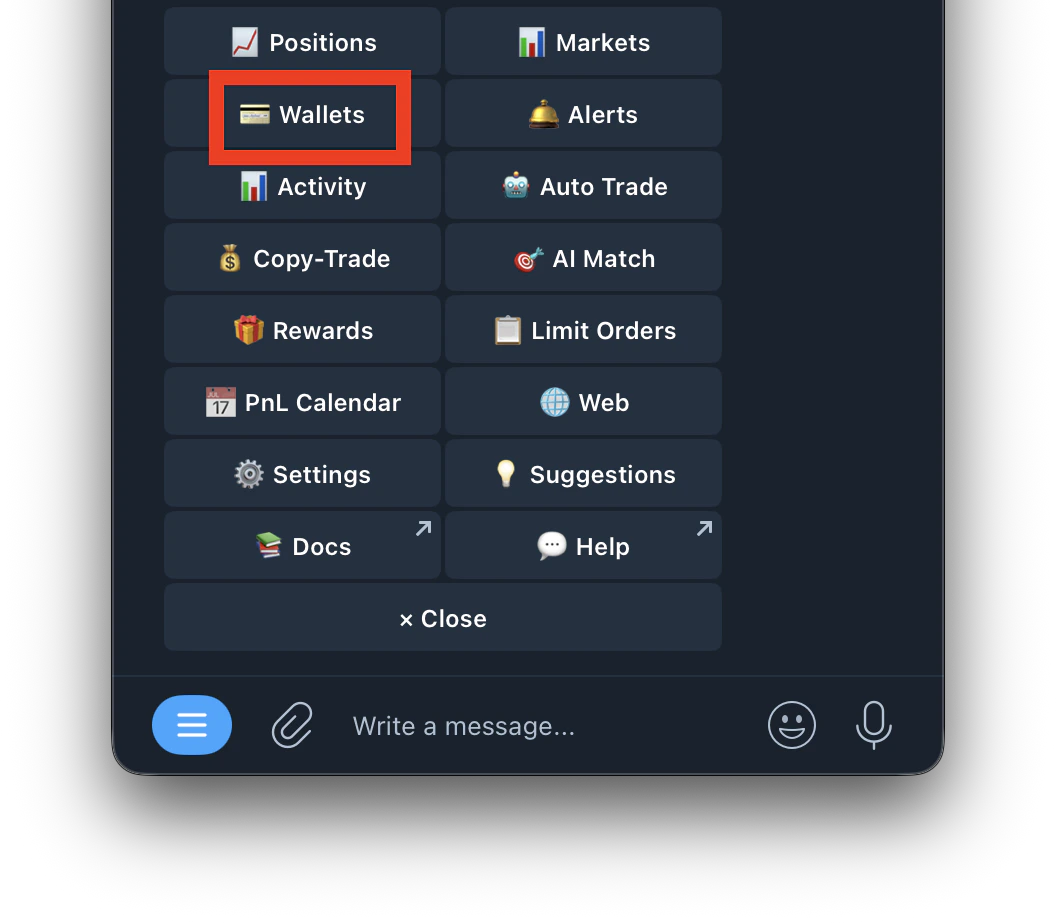
1. Go to /wallets or /start and click on Wallets
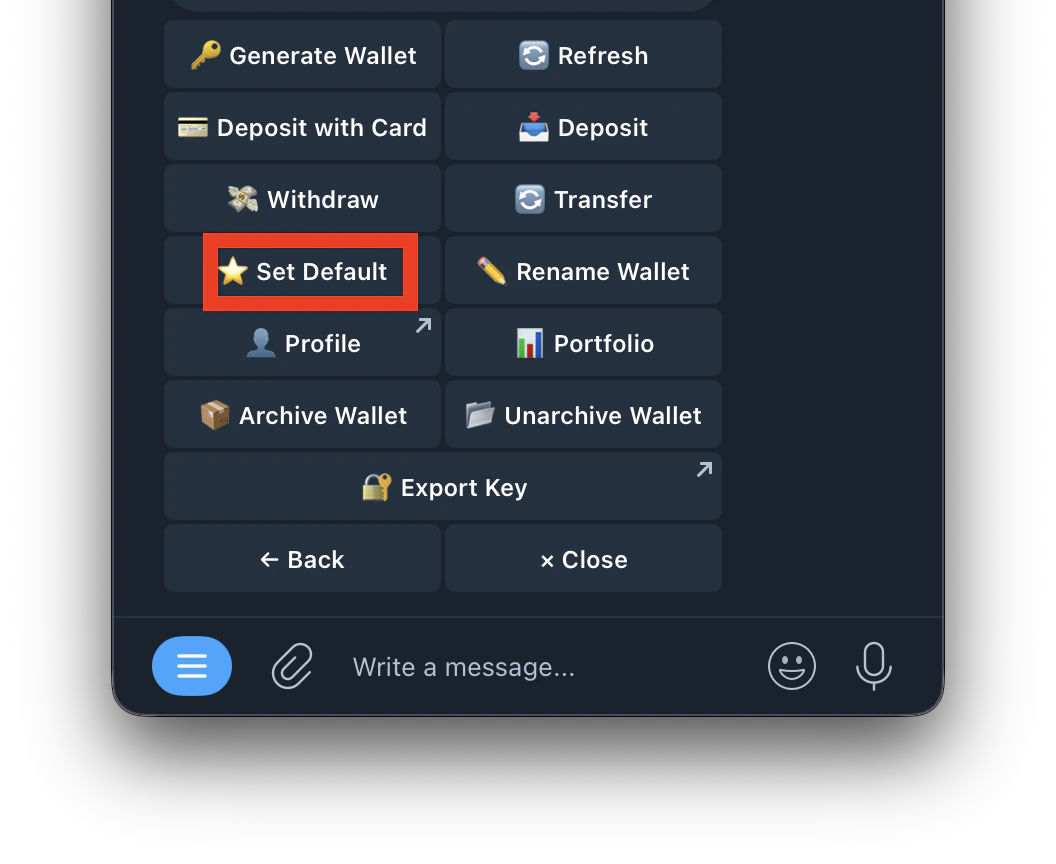
 2. Tap **Set Default**
 3. Select the wallet you want to set as default
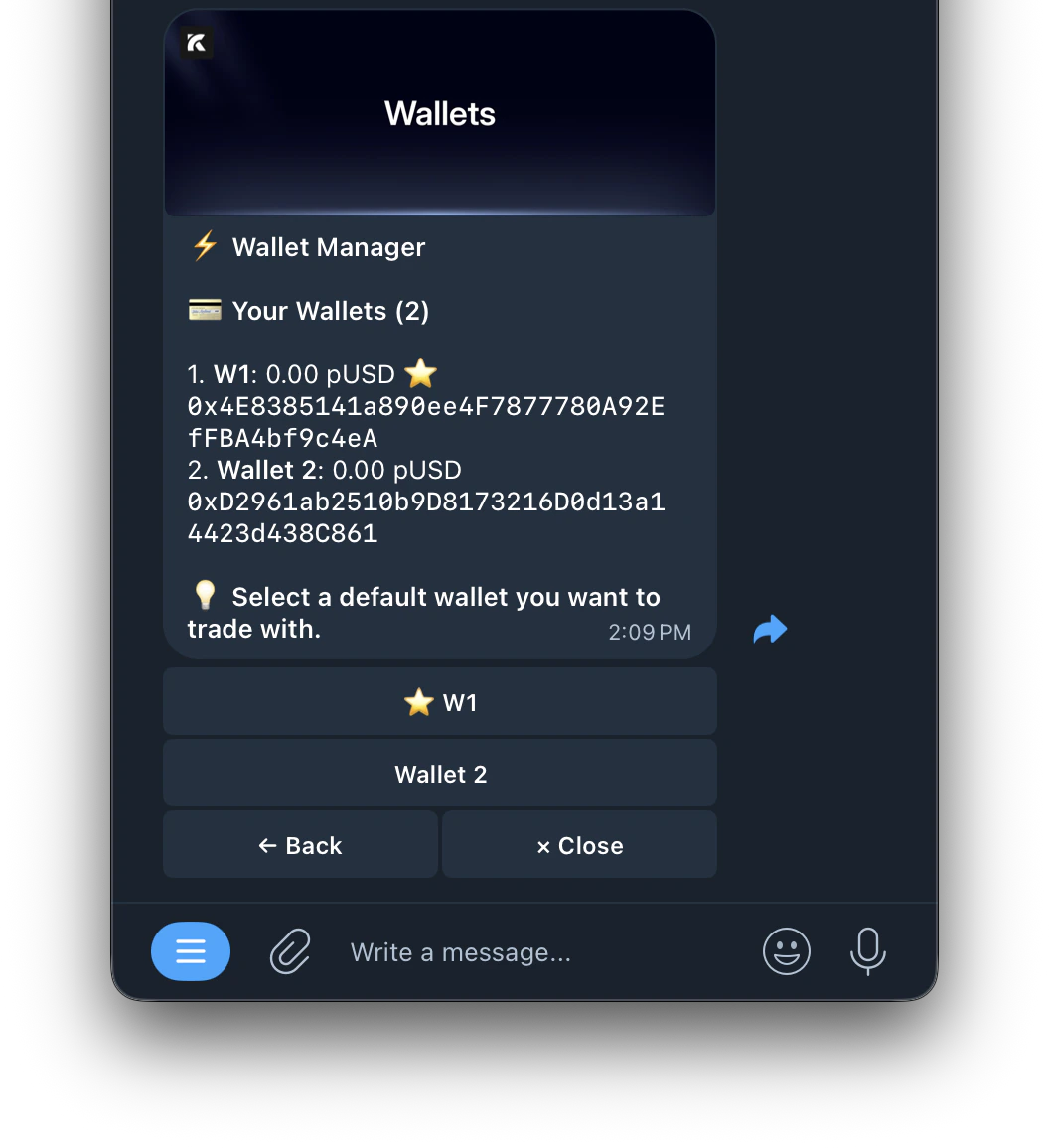 4. The selected wallet will show ⭐ next to its name
* All manual trades use your default wallet
* Hub bot > Wallet Manager shows your default wallet's key
* New copy trade and auto trade tasks default to this wallet unless you choose a different one
4. The selected wallet will show ⭐ next to its name
* All manual trades use your default wallet
* Hub bot > Wallet Manager shows your default wallet's key
* New copy trade and auto trade tasks default to this wallet unless you choose a different one