> ## Documentation Index
> Fetch the complete documentation index at: https://docs.kreo.app/llms.txt
> Use this file to discover all available pages before exploring further.
# Schedule (Crypto Auto Trade)
> Access the Schedule settings by tapping **🕐 Schedule** from the Edit Task menu. The schedule lets you set specific trading hours for your task so the bot only opens new entries within your configured time window.
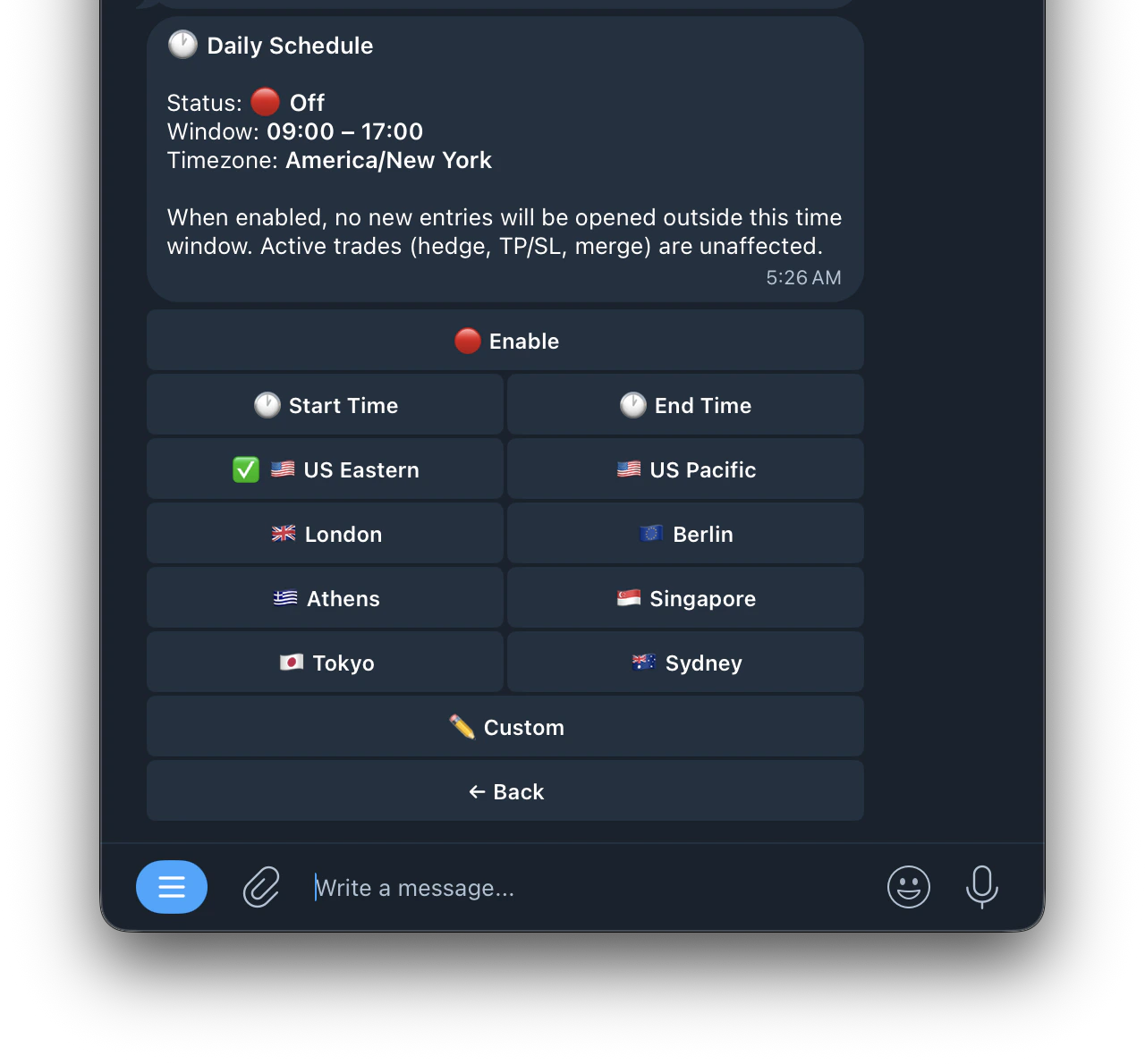 * **🔴 Enable**: turn the schedule on or off
* **⏰ Start Time**: set the time you want the bot to start opening new entries
* **⏰ End Time**:Timezone Options set the time you want the bot to stop opening new entries
Select your local timezone so the schedule runs at the correct times for you:
* 🇺🇸 **US Eastern**
* 🇺🇸 **US Pacific**
* 🇬🇧 **London**
* 🇪🇺 **Berlin**
* 🇬🇷 **Athens**
* 🇸🇬 **Singapore**
* 🇯🇵 **Tokyo**
* 🇦🇺 **Sydney**
* ✏️ **Custom**: enter any timezone manually in IANA format
**Custom Timezone:** If your timezone isn't listed, tap **Custom** and enter it in IANA format.
When enabled, no new entries will be opened outside this time window. Active trades including hedges, TP/SL and merges are unaffected by the schedule.
* **🔴 Enable**: turn the schedule on or off
* **⏰ Start Time**: set the time you want the bot to start opening new entries
* **⏰ End Time**:Timezone Options set the time you want the bot to stop opening new entries
Select your local timezone so the schedule runs at the correct times for you:
* 🇺🇸 **US Eastern**
* 🇺🇸 **US Pacific**
* 🇬🇧 **London**
* 🇪🇺 **Berlin**
* 🇬🇷 **Athens**
* 🇸🇬 **Singapore**
* 🇯🇵 **Tokyo**
* 🇦🇺 **Sydney**
* ✏️ **Custom**: enter any timezone manually in IANA format
**Custom Timezone:** If your timezone isn't listed, tap **Custom** and enter it in IANA format.
When enabled, no new entries will be opened outside this time window. Active trades including hedges, TP/SL and merges are unaffected by the schedule.