> ## Documentation Index
> Fetch the complete documentation index at: https://docs.kreo.app/llms.txt
> Use this file to discover all available pages before exploring further.
# Staying Safe on Telegram
We will never call you, DM you first, or ask for Private Keys / money. Report anyone that does so. \
\
Use the guide below to stop scammers!
***
# Stop Spam Calls on Telegram
These steps apply to Telegram on **iOS**, **Android**, and **Desktop**. Screenshots may vary slightly by platform, but the menu structure is identical.
***
## Why You're Receiving Spam Calls
Spam calls on Telegram typically happen for one of these reasons:
* Your phone number appeared in a **data breach** and was identified as a Telegram user
* Your **profile is public**, making you discoverable by username search
* You previously allowed **everyone** to call you (the default setting)
* You were added to a **spam group** that harvested your contact info
The good news: a few privacy changes will stop almost all of it.
***
## Step 1 — Restrict Who Can Call You
This is the most direct fix for spam calls.
Launch Telegram and tap the **☰ menu** (top-left on Android/Desktop) or go to **Settings** (bottom-right on iOS).
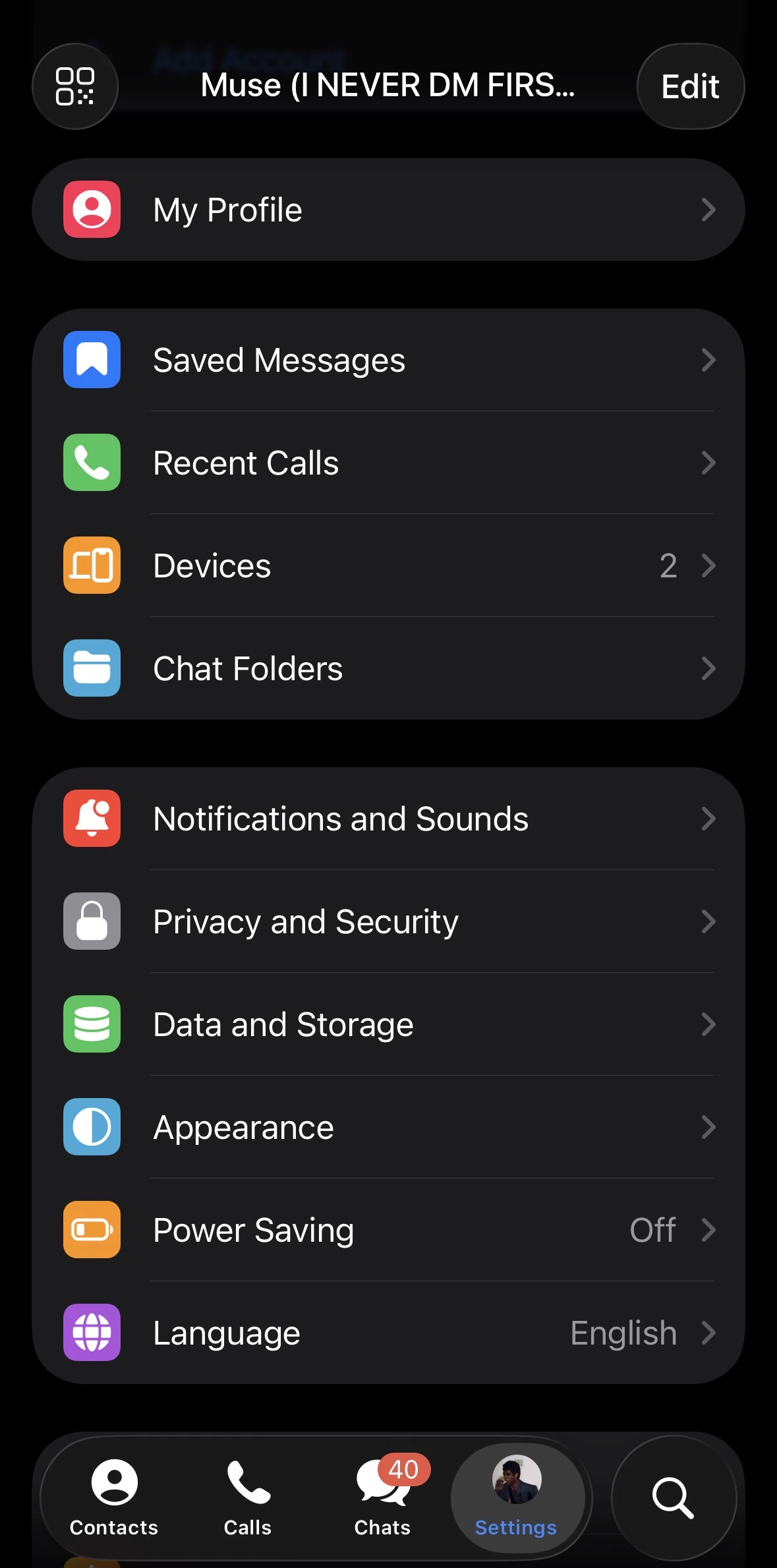 On iOS, the Settings tab is the gear icon in the bottom navigation bar.
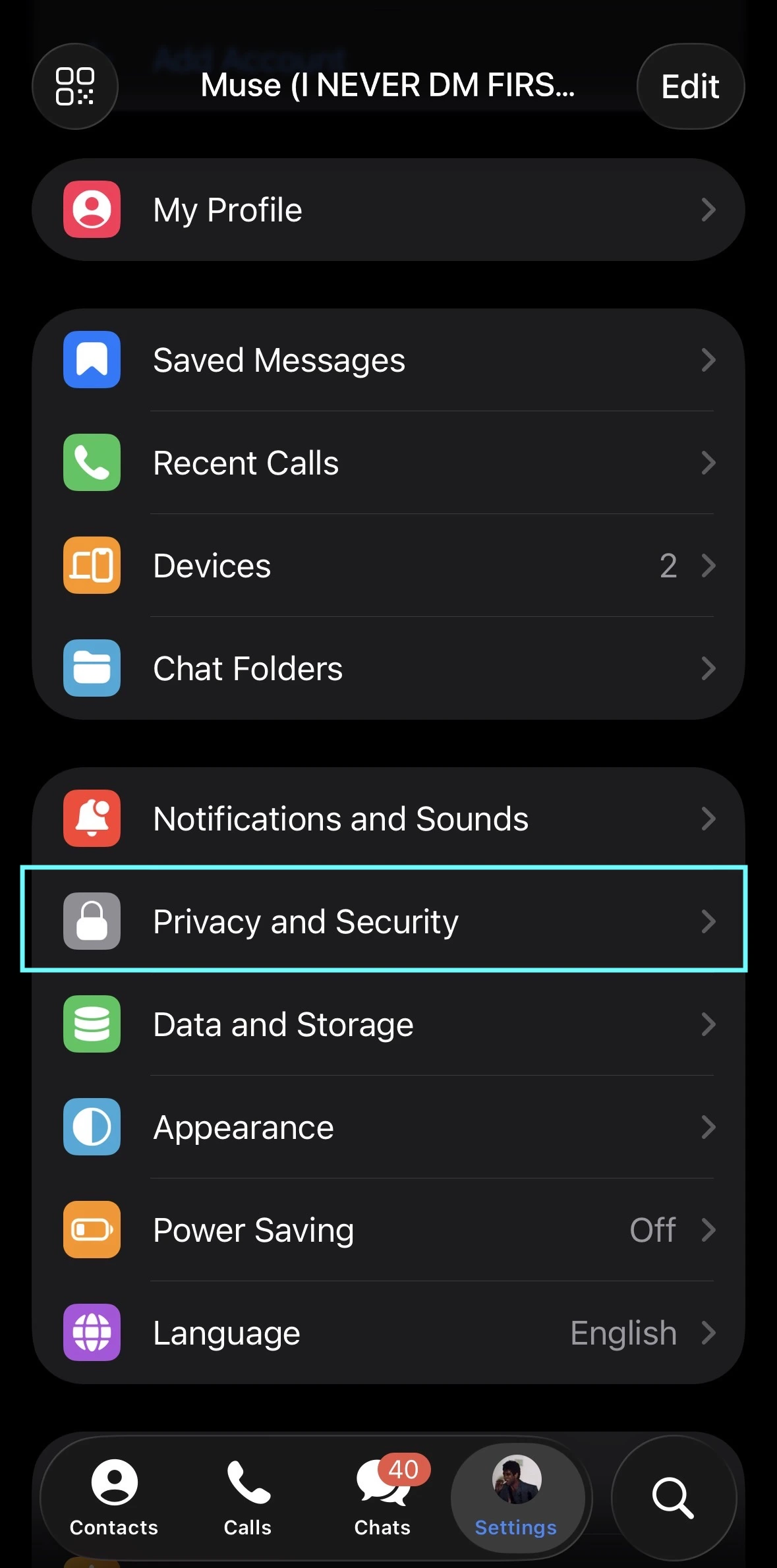
Scroll down and tap **Privacy and Security**.
On iOS, the Settings tab is the gear icon in the bottom navigation bar.
Scroll down and tap **Privacy and Security**.
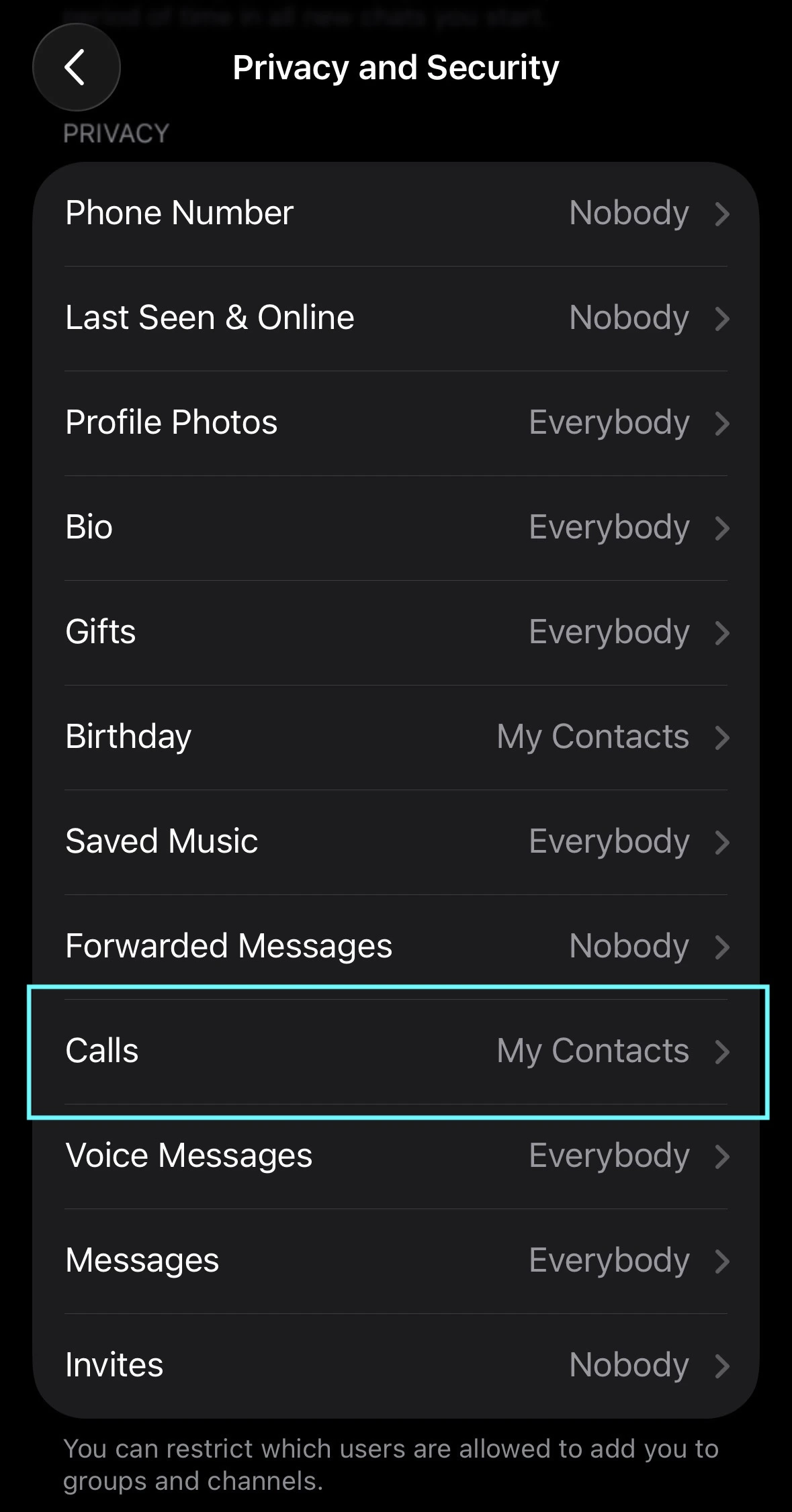
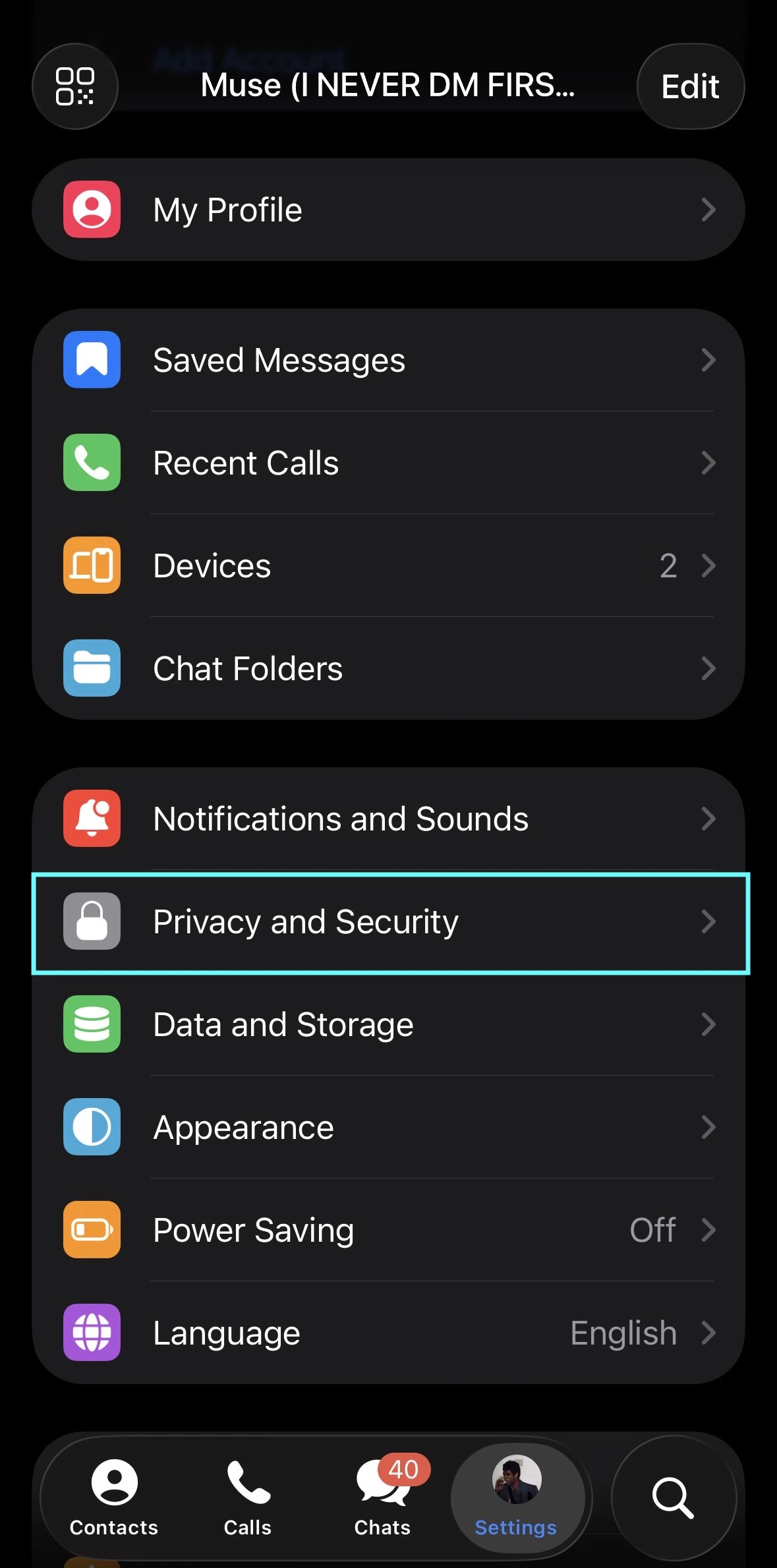 Under the **Privacy** section, tap **Calls**.
Change the setting from **Everybody** to **My Contacts**.
Under the **Privacy** section, tap **Calls**.
Change the setting from **Everybody** to **My Contacts**.
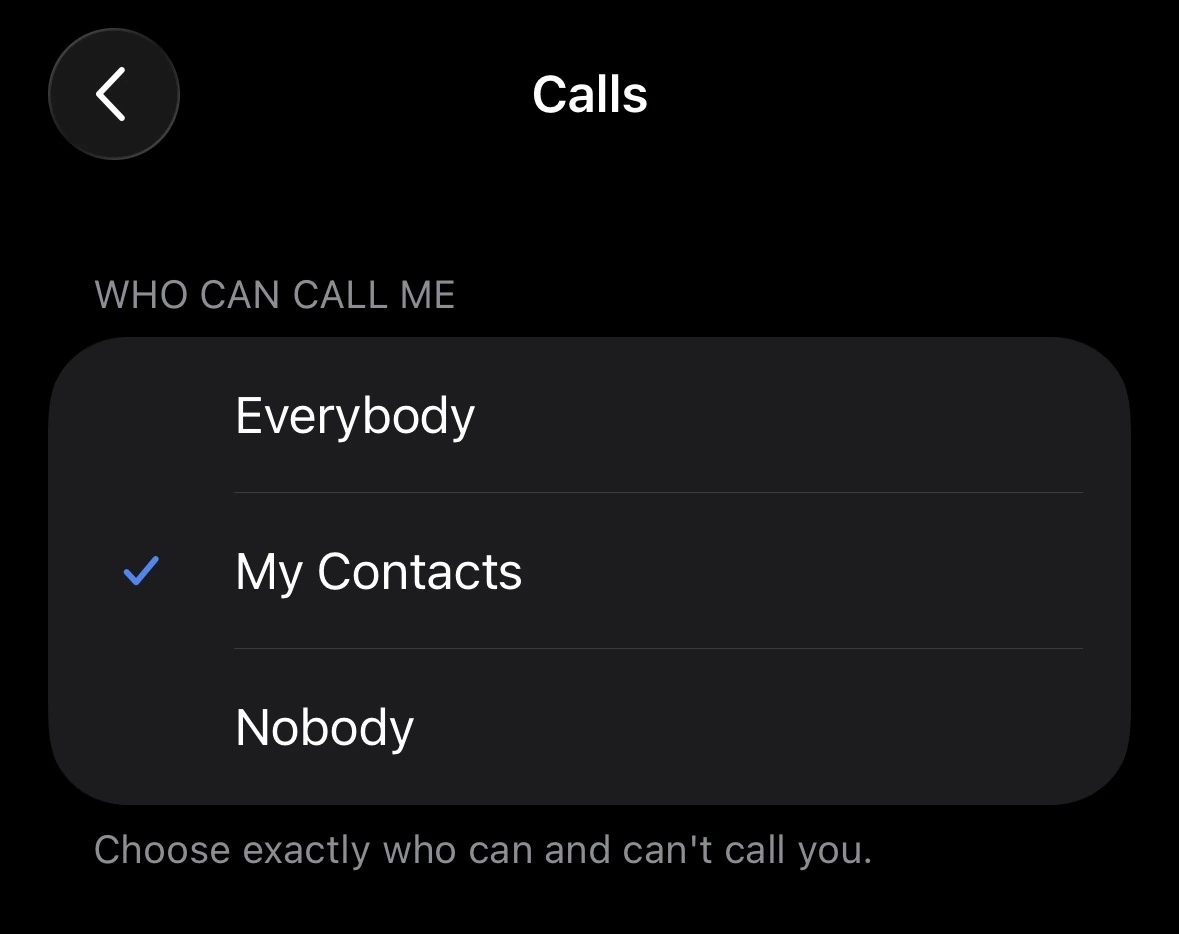 This blocks all calls from anyone not saved in your phone contacts.
Still inside **Calls**, find the **Peer-to-Peer** option and set it to **Nobody**.
This blocks all calls from anyone not saved in your phone contacts.
Still inside **Calls**, find the **Peer-to-Peer** option and set it to **Nobody**.
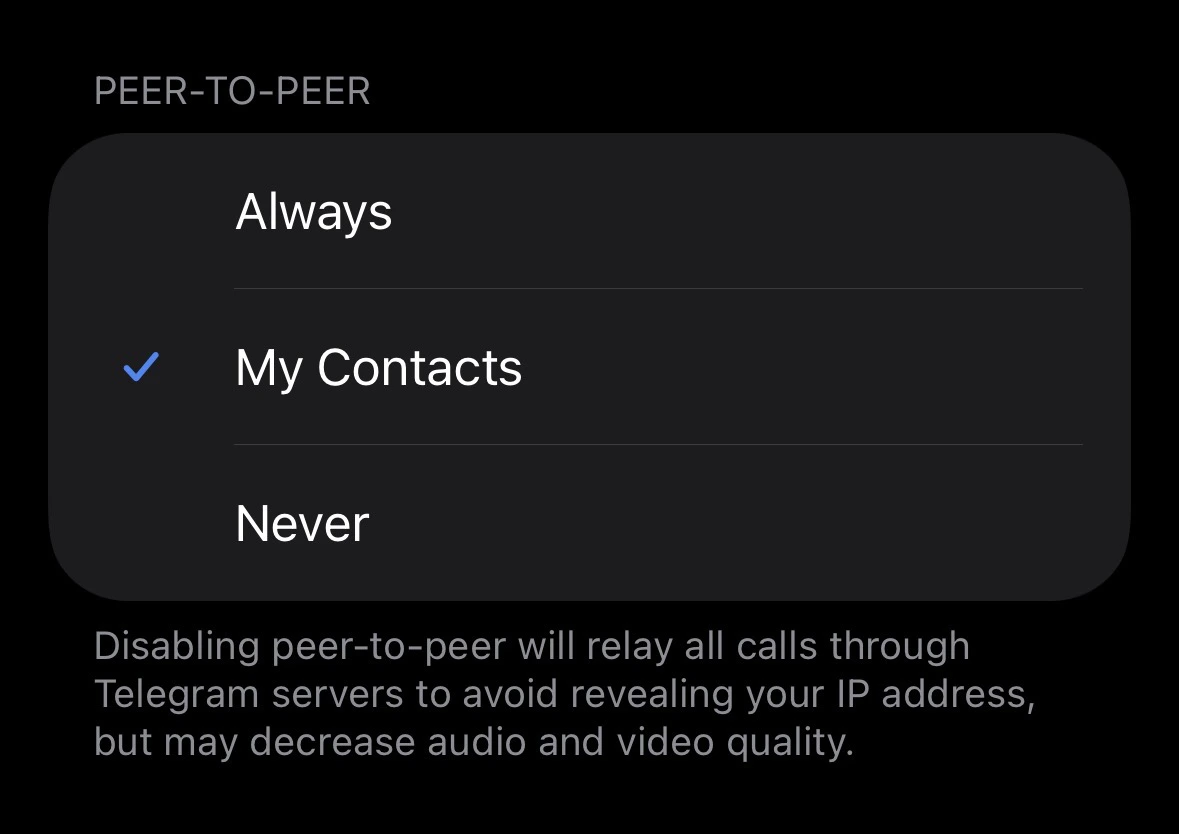 Peer-to-Peer (P2P) routes calls directly between devices, which exposes your **IP address** to the caller. Setting this to Nobody forces all calls through Telegram's servers, hiding your IP — at a slight cost to call quality.
***
## Step 2 — Hide Your Phone Number
Spammers find Telegram users by running phone numbers from data breaches through Telegram's API. Hiding your number cuts off this discovery method.
Navigate back to **Settings → Privacy and Security**.
Tap **Phone Number** under the Privacy section.
Set the following:
| Setting | Recommended Value |
| ----------------------------- | ----------------- |
| Who can see my phone number? | **Nobody** |
| Who can find me by my number? | **My Contacts** |
Setting "Who can find me by my number?" to **Nobody** means even people who have your number saved cannot find you on Telegram. Use **My Contacts** if you want friends to be able to reach you.
***
## Step 3 — Block Unknown Messages
Go to **Settings → Privacy and Security**.
Scroll down to find **Messages** (also listed as **Who can send me messages** on some versions).
Change the option to **My Contacts**.
This prevents unknown accounts and bots from sending you unsolicited messages or call requests.
**Telegram Premium** users get an additional option: **Nobody** — which allows only contacts to message you while still letting you initiate conversations with anyone.
***
## Step 4 — Prevent Being Added to Spam Groups
Many spam calls originate after your account is bulk-added to a spam group or channel.
In **Privacy and Security**, tap **Groups & Channels**.
Peer-to-Peer (P2P) routes calls directly between devices, which exposes your **IP address** to the caller. Setting this to Nobody forces all calls through Telegram's servers, hiding your IP — at a slight cost to call quality.
***
## Step 2 — Hide Your Phone Number
Spammers find Telegram users by running phone numbers from data breaches through Telegram's API. Hiding your number cuts off this discovery method.
Navigate back to **Settings → Privacy and Security**.
Tap **Phone Number** under the Privacy section.
Set the following:
| Setting | Recommended Value |
| ----------------------------- | ----------------- |
| Who can see my phone number? | **Nobody** |
| Who can find me by my number? | **My Contacts** |
Setting "Who can find me by my number?" to **Nobody** means even people who have your number saved cannot find you on Telegram. Use **My Contacts** if you want friends to be able to reach you.
***
## Step 3 — Block Unknown Messages
Go to **Settings → Privacy and Security**.
Scroll down to find **Messages** (also listed as **Who can send me messages** on some versions).
Change the option to **My Contacts**.
This prevents unknown accounts and bots from sending you unsolicited messages or call requests.
**Telegram Premium** users get an additional option: **Nobody** — which allows only contacts to message you while still letting you initiate conversations with anyone.
***
## Step 4 — Prevent Being Added to Spam Groups
Many spam calls originate after your account is bulk-added to a spam group or channel.
In **Privacy and Security**, tap **Groups & Channels**.
 Set **Who can add me to groups and channels?** to **My Contacts**.
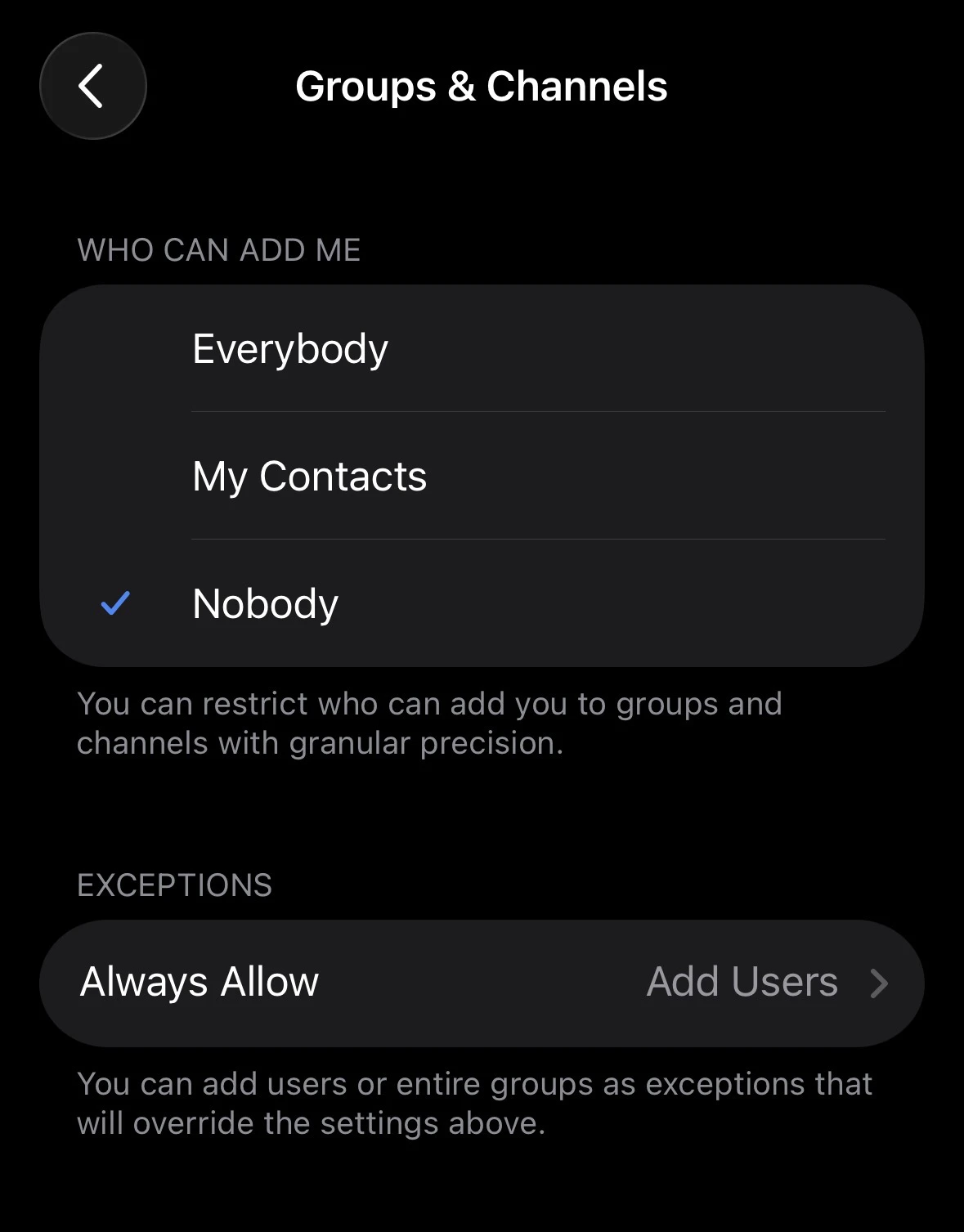 If specific accounts keep trying to add you, tap **Never Allow** and add them. This acts as a permanent block even if they change accounts.
***
## Step 5 — Block & Report a Spam Caller
If you've already received a spam call or message:
Tap the conversation or missed call notification from the spammer.
Tap their name or avatar to open their profile.
Tap **⋮** (three dots) in the top-right corner.
Choose **Block User** to stop all contact. Choose **Report → Spam** to flag the account to Telegram's moderation team.
Blocked users are **not notified** that you blocked them. They simply can no longer reach you, see your last seen status, or view your profile photo.
***
## Step 6 — Enable Two-Step Verification
Spam callers sometimes impersonate legitimate contacts after hijacking an account. Two-step verification (2FA) protects your account from being taken over.
Navigate to **Settings → Privacy and Security → Two-Step Verification**.
Create a strong, unique password. This is required in addition to your SMS code on new logins.
Provide an email address for account recovery in case you forget the password.
Use an email address you actively monitor. Without recovery access, a forgotten 2FA password can permanently lock you out of your account.
***
## Quick Reference Checklist
Use this checklist to confirm your anti-spam setup is complete:
**Calls** → Who can call me → **My Contacts**
**Calls** → Peer-to-Peer → **Nobody**
**Phone Number** → Who can see my phone number → **Nobody**
**Phone Number** → Who can find me by my number → **My Contacts**
**Messages** → Who can message me → **My Contacts**
**Groups & Channels** → Who can add me → **My Contacts**
**Two-Step Verification** → Enabled with a strong password
***
***
## Frequently Asked Questions
No. Telegram does not send any notification when you block a user. They will simply be unable to call or message you, and your profile will no longer be visible to them.
If your number is set to **Nobody** and your username is removed or set to private, you become effectively undiscoverable to strangers. Spammers rely on either phone number lookups or public usernames to find targets.
No. Anyone saved in your phone contacts can still call you normally. The setting only blocks calls from people who are not in your contacts list.
By default, Telegram calls can connect directly between devices (P2P), which exposes both parties' IP addresses. Setting P2P to **Nobody** routes all calls through Telegram's relay servers, hiding your IP at the cost of slightly higher latency.
* Remove your **public username** temporarily (Settings → Edit Profile → Username → clear it)
* Check **Active Sessions** (Settings → Privacy and Security → Active Sessions) and revoke any unrecognized devices
* Report the spam account to **@SpamBot**
* Consider enabling **Telegram Premium** for the **Nobody** message restriction option
No. We will never ask for money, we will never ask for your keys. Nobody from the team.
If specific accounts keep trying to add you, tap **Never Allow** and add them. This acts as a permanent block even if they change accounts.
***
## Step 5 — Block & Report a Spam Caller
If you've already received a spam call or message:
Tap the conversation or missed call notification from the spammer.
Tap their name or avatar to open their profile.
Tap **⋮** (three dots) in the top-right corner.
Choose **Block User** to stop all contact. Choose **Report → Spam** to flag the account to Telegram's moderation team.
Blocked users are **not notified** that you blocked them. They simply can no longer reach you, see your last seen status, or view your profile photo.
***
## Step 6 — Enable Two-Step Verification
Spam callers sometimes impersonate legitimate contacts after hijacking an account. Two-step verification (2FA) protects your account from being taken over.
Navigate to **Settings → Privacy and Security → Two-Step Verification**.
Create a strong, unique password. This is required in addition to your SMS code on new logins.
Provide an email address for account recovery in case you forget the password.
Use an email address you actively monitor. Without recovery access, a forgotten 2FA password can permanently lock you out of your account.
***
## Quick Reference Checklist
Use this checklist to confirm your anti-spam setup is complete:
**Calls** → Who can call me → **My Contacts**
**Calls** → Peer-to-Peer → **Nobody**
**Phone Number** → Who can see my phone number → **Nobody**
**Phone Number** → Who can find me by my number → **My Contacts**
**Messages** → Who can message me → **My Contacts**
**Groups & Channels** → Who can add me → **My Contacts**
**Two-Step Verification** → Enabled with a strong password
***
***
## Frequently Asked Questions
No. Telegram does not send any notification when you block a user. They will simply be unable to call or message you, and your profile will no longer be visible to them.
If your number is set to **Nobody** and your username is removed or set to private, you become effectively undiscoverable to strangers. Spammers rely on either phone number lookups or public usernames to find targets.
No. Anyone saved in your phone contacts can still call you normally. The setting only blocks calls from people who are not in your contacts list.
By default, Telegram calls can connect directly between devices (P2P), which exposes both parties' IP addresses. Setting P2P to **Nobody** routes all calls through Telegram's relay servers, hiding your IP at the cost of slightly higher latency.
* Remove your **public username** temporarily (Settings → Edit Profile → Username → clear it)
* Check **Active Sessions** (Settings → Privacy and Security → Active Sessions) and revoke any unrecognized devices
* Report the spam account to **@SpamBot**
* Consider enabling **Telegram Premium** for the **Nobody** message restriction option
No. We will never ask for money, we will never ask for your keys. Nobody from the team.