> ## Documentation Index
> Fetch the complete documentation index at: https://docs.kreo.app/llms.txt
> Use this file to discover all available pages before exploring further.
# Limit Orders
> Buy or sell at your exact target price. Perfect for entries, take-profits, and stop-losses.
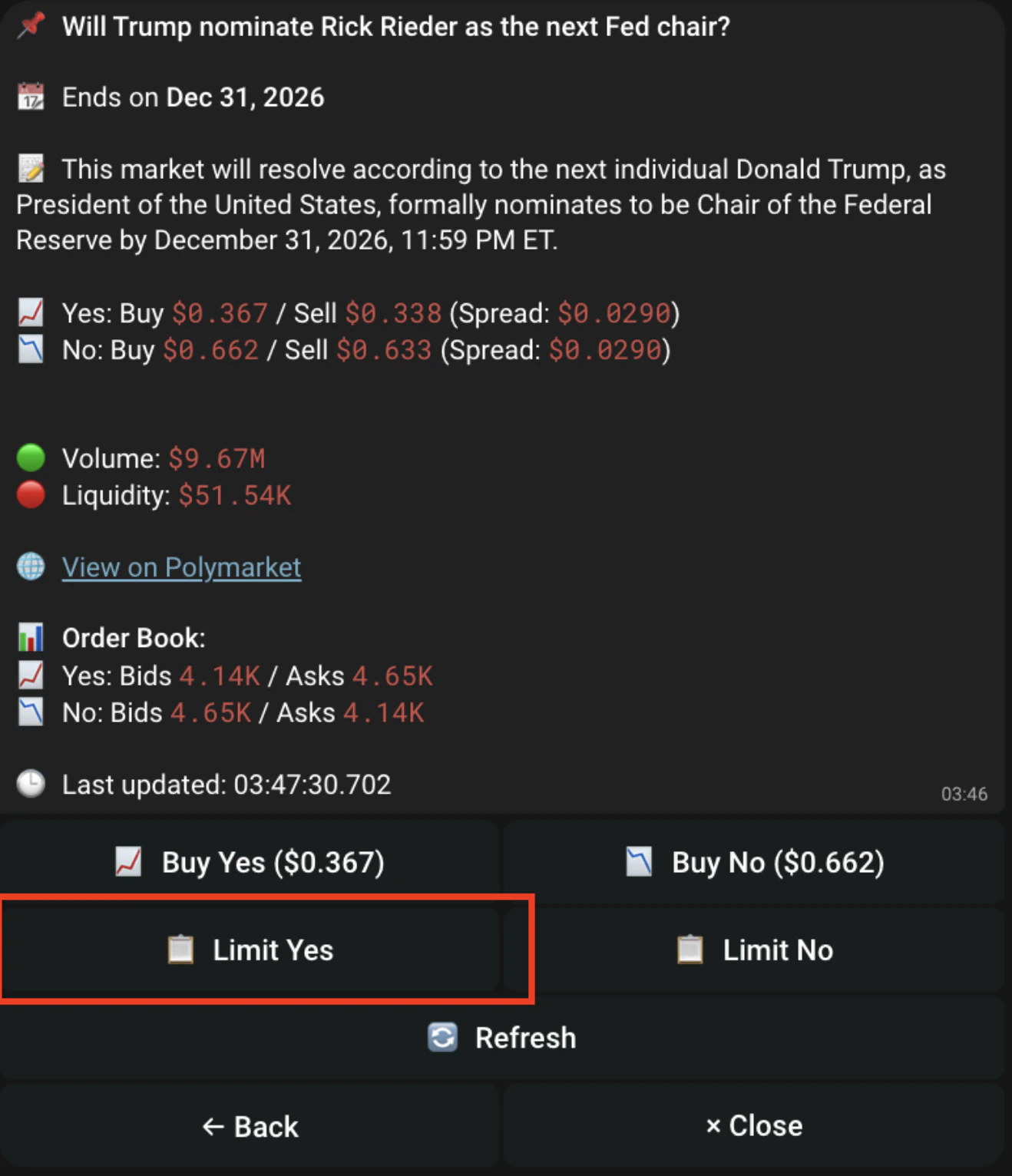
A limit order lets you set the exact price you want to **buy** or **sell** at. If the market price matches your target, the order fills immediately. If not, the order rests on the book until it's matched or expires.
### **Setting up Limit Orders**
**How to Place a Limit Order**
Enter the **exact price** you want to buy at. The order will only trigger once the market reaches your price.
Enter how much **USDC** you want to allocate to this order.
**Order Expiration**
| Format | What it means | Example |
| :----------------- | :---------------------------------------------------------------------------------------------- | :--------------------- |
| **0** | No expiration — order stays open until filled or manually cancelled (GTC — Good Till Cancelled) | 0 |
| **1h / 24h** | Order expires after the set duration if not filled | 1h = expires in 1 hour |
| **Unix timestamp** | Order expires at an exact date and time | 1745000000 |
When the order triggers, you’ll get a **buy/sell notification** in the Telegram bot.
**What Happens After Placing a Limit Order**
| Scenario | What happens |
| :------------------------------------- | :--------------------------------------------- |
| Price is at or better than your target | Order fills immediately |
| Price hasn't reached your target | Order rests on the orderbook and waits |
| Order fills | You receive a buy/sell notification in the bot |
| Order partially fills | Notification shows shares filled vs requested |
**Managing Your Limit Orders**
1. Type /orders or go to /start > Limit Orders
2. View all active limit orders
3. Each order shows:
| Field | Details |
| :----------- | :------------------------- |
| Market name | The market the order is on |
| Side | YES or NO |
| Target price | Your set price |
| Amount | USDC amount |
| Shares | Number of shares |
| Expiry | When the order expires |
| Fill status | How much has been filled |
4. Cancel a single order or all untriggered orders at once
**Limit Orders on Copy Trade**
Found inside **Price Match Mode** in your task settings:
| Setting | What it does |
| :---------------- | :--------------------------------------------------------------------------------------------------------------- |
| 🔴 **Buy Limit** | Places buy orders at the leader's exact price instead of market price |
| 🔴 **Sell Limit** | Places sell orders at the leader's exact price instead of market price |
| ↕️ **Buy Offset** | Adjusts your limit price away from the leader's price. Example: 5% offset = limit placed 5% above leader's price |
| 🧭 **Direction** | **Above** = easier fills. **Below** = better price but may not fill |
| ⏱️ **Duration** | How long the order stays on the book before expiring |
**Limit Orders on Auto Trade**
When limit order mode is enabled on auto trade, the bot places orders at a specific target price instead of filling at market price. If the order can't fill immediately, it rests on the book until matched or expires.
* Limit orders give you price control but may not fill if the market doesn't reach your price
* Use GTC (no expiration) for markets you're patient on
* Set short expiration times on fast-moving markets to avoid stale orders
* Check /orders regularly to manage and cancel unfilled orders