> ## Documentation Index
> Fetch the complete documentation index at: https://docs.kreo.app/llms.txt
> Use this file to discover all available pages before exploring further.

# Export Keys

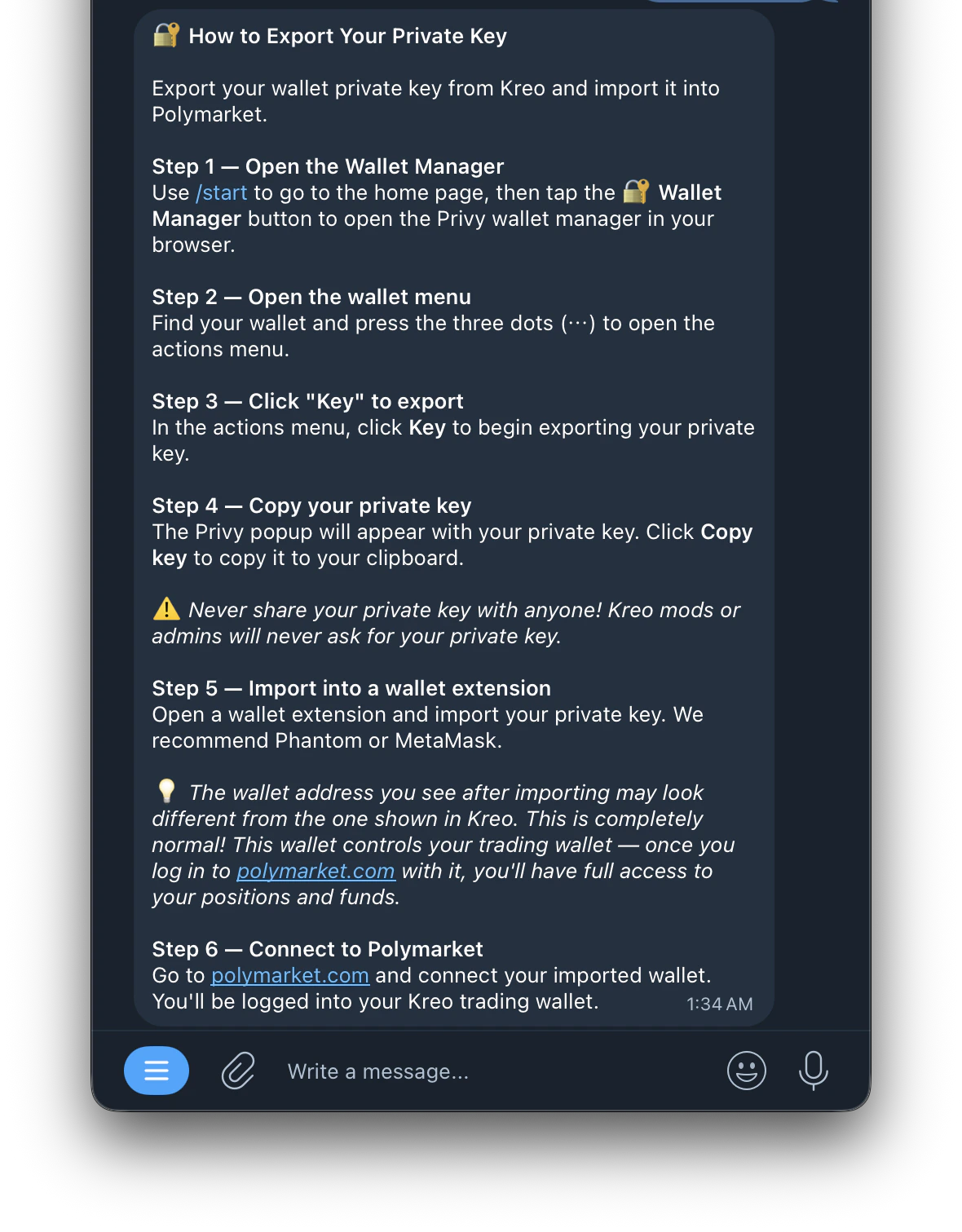
> Export your private key to use your Kreo wallet in external wallets like MetaMask.

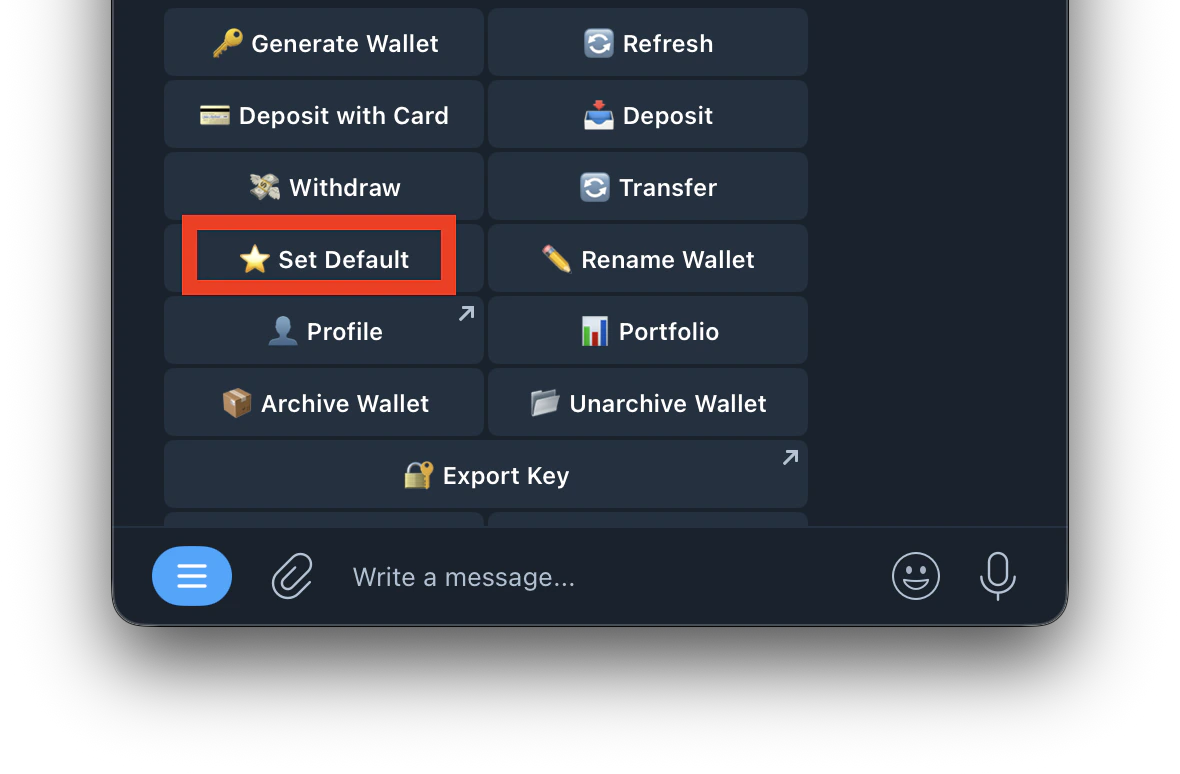
**Step 1: Set your default wallet**

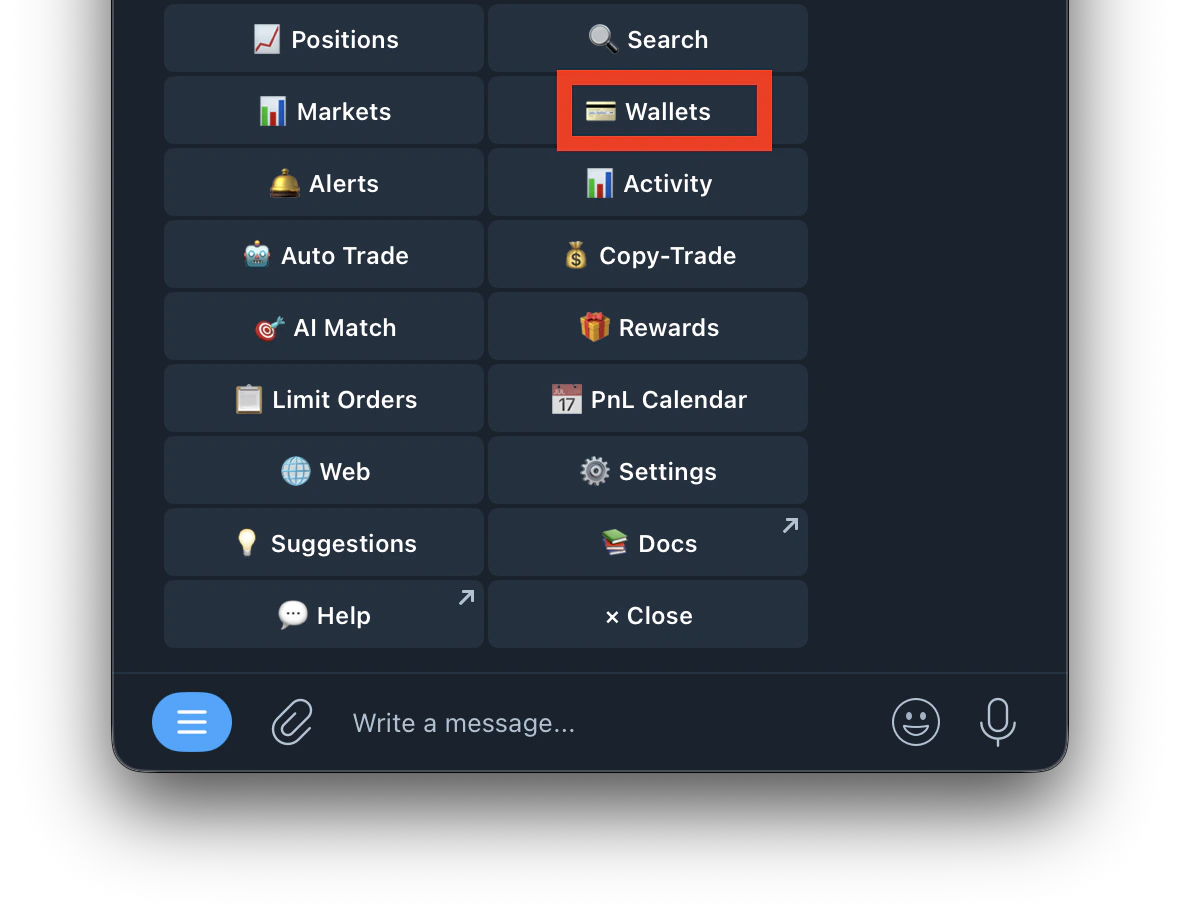
1. Type /wallets
   <Frame>
     <img src="https://mintcdn.com/kreo/M2q5ujI7i0TLv2rl/images/Screenshot-2026-04-26-at-1.29.32-AM.png?fit=max&auto=format&n=M2q5ujI7i0TLv2rl&q=85&s=58f3ea879692888d79a430a3e8671c08" alt="Screenshot 2026 04 26 At 1 29 32 AM" title="Screenshot 2026 04 26 At 1 29 32 AM" className="mx-auto" style={{ width:"60%" }} width="1180" height="920" data-path="images/Screenshot-2026-04-26-at-1.29.32-AM.png" />
   </Frame>
2. Select the wallet you want to export and set it as your default
   <Frame>
     <img src="https://mintcdn.com/kreo/M2q5ujI7i0TLv2rl/images/Screenshot-2026-04-26-at-1.31.22-AM.png?fit=max&auto=format&n=M2q5ujI7i0TLv2rl&q=85&s=3b7b157413995d706bf3050cb66d5105" alt="Screenshot 2026 04 26 At 1 31 22 AM" title="Screenshot 2026 04 26 At 1 31 22 AM" className="mx-auto" style={{ width:"61%" }} width="1180" height="774" data-path="images/Screenshot-2026-04-26-at-1.31.22-AM.png" />
   </Frame>

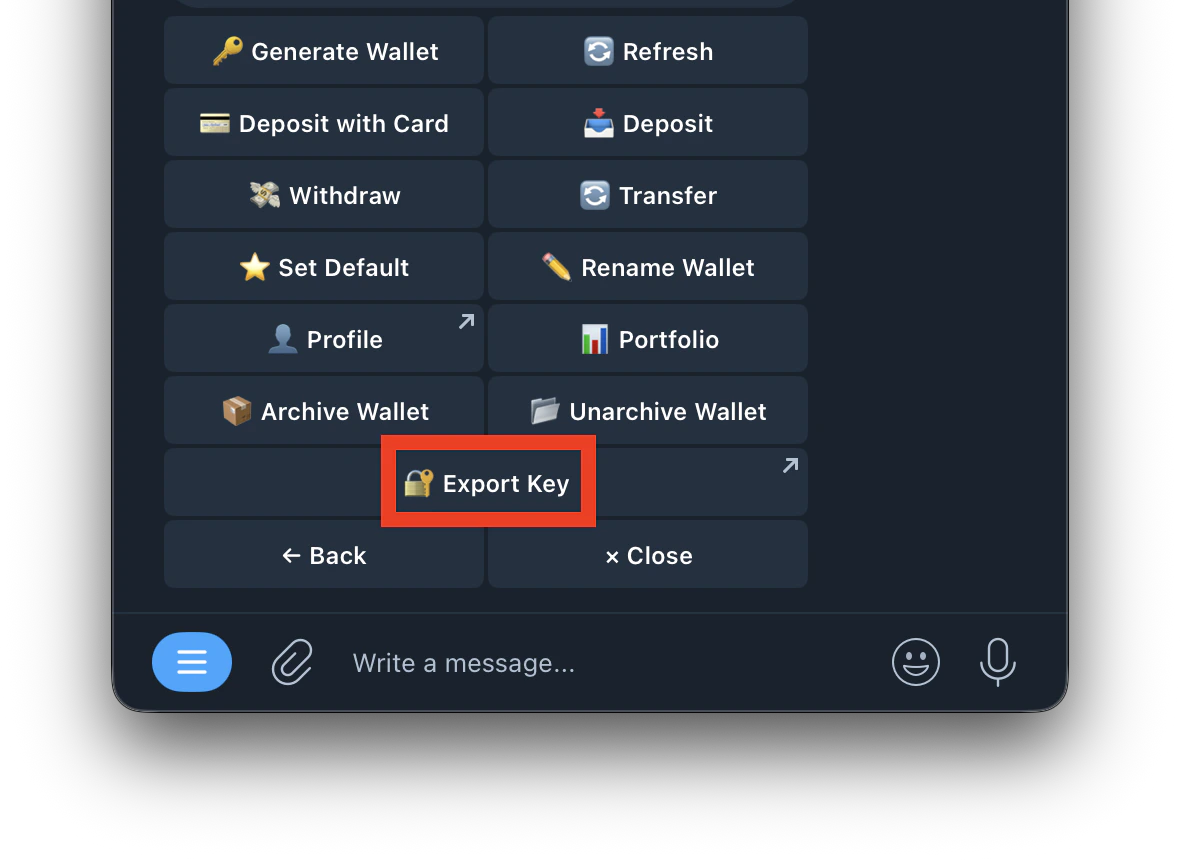
**Step 2: Export from Hub**

1. Go to /wallets and tap **Export Key**
   <Frame>
     <img src="https://mintcdn.com/kreo/M2q5ujI7i0TLv2rl/images/Screenshot-2026-04-26-at-1.33.34-AM.png?fit=max&auto=format&n=M2q5ujI7i0TLv2rl&q=85&s=3d5048586e60021d6c6623e23d8ad1bc" alt="Screenshot 2026 04 26 At 1 33 34 AM" title="Screenshot 2026 04 26 At 1 33 34 AM" className="mx-auto" style={{ width:"52%" }} width="1180" height="860" data-path="images/Screenshot-2026-04-26-at-1.33.34-AM.png" />
   </Frame>
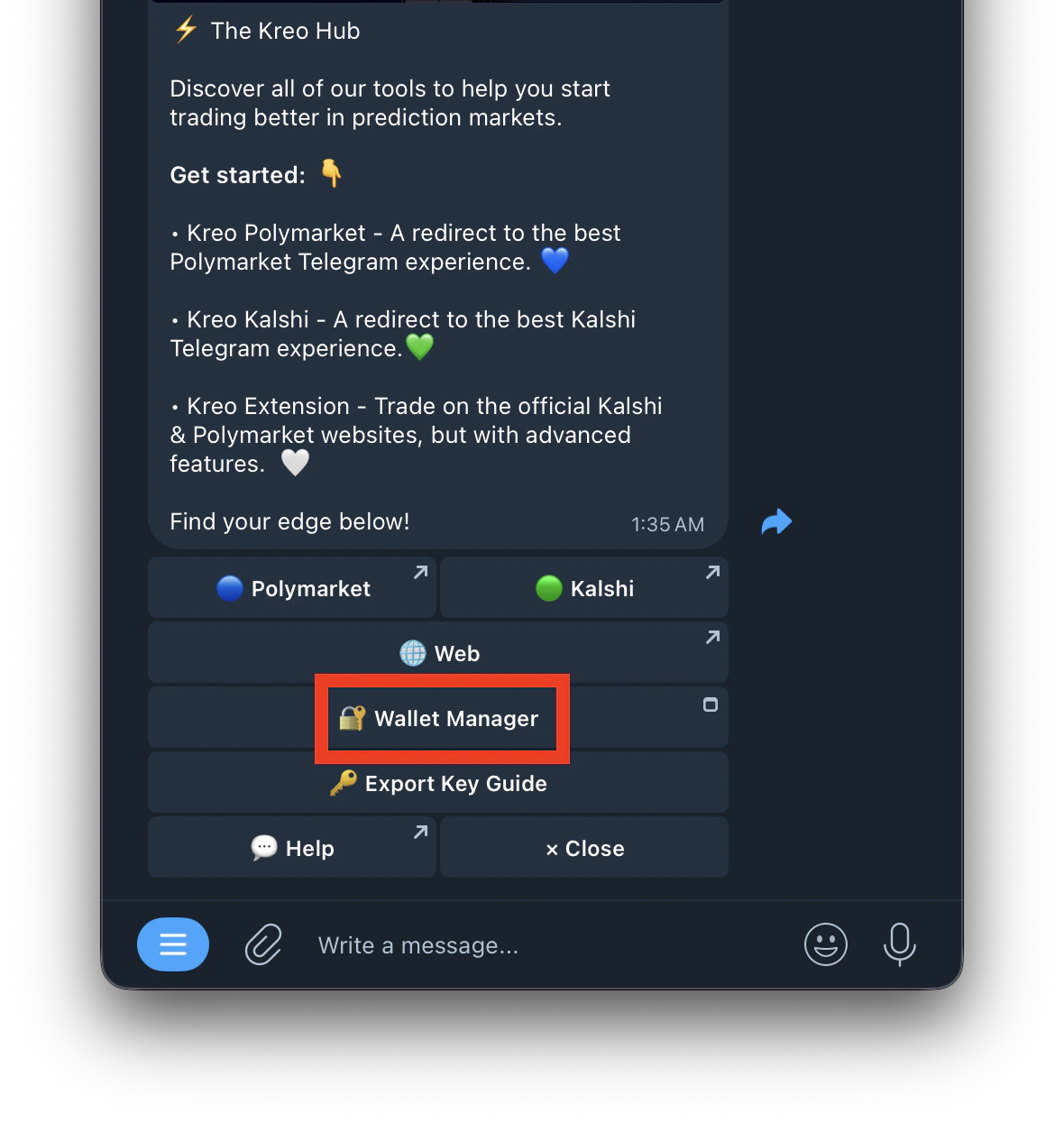
2. It redirects you to Kreo Hub
   <Frame>
     <img src="https://mintcdn.com/kreo/M2q5ujI7i0TLv2rl/images/Screenshot-2026-04-26-at-1.34.45-AM.png?fit=max&auto=format&n=M2q5ujI7i0TLv2rl&q=85&s=2f563fd2d238ff9e93475f32fe253e27" alt="Screenshot 2026 04 26 At 1 34 45 AM" title="Screenshot 2026 04 26 At 1 34 45 AM" className="mx-auto" style={{ width:"48%" }} width="1180" height="1511" data-path="images/Screenshot-2026-04-26-at-1.34.45-AM.png" />
   </Frame>
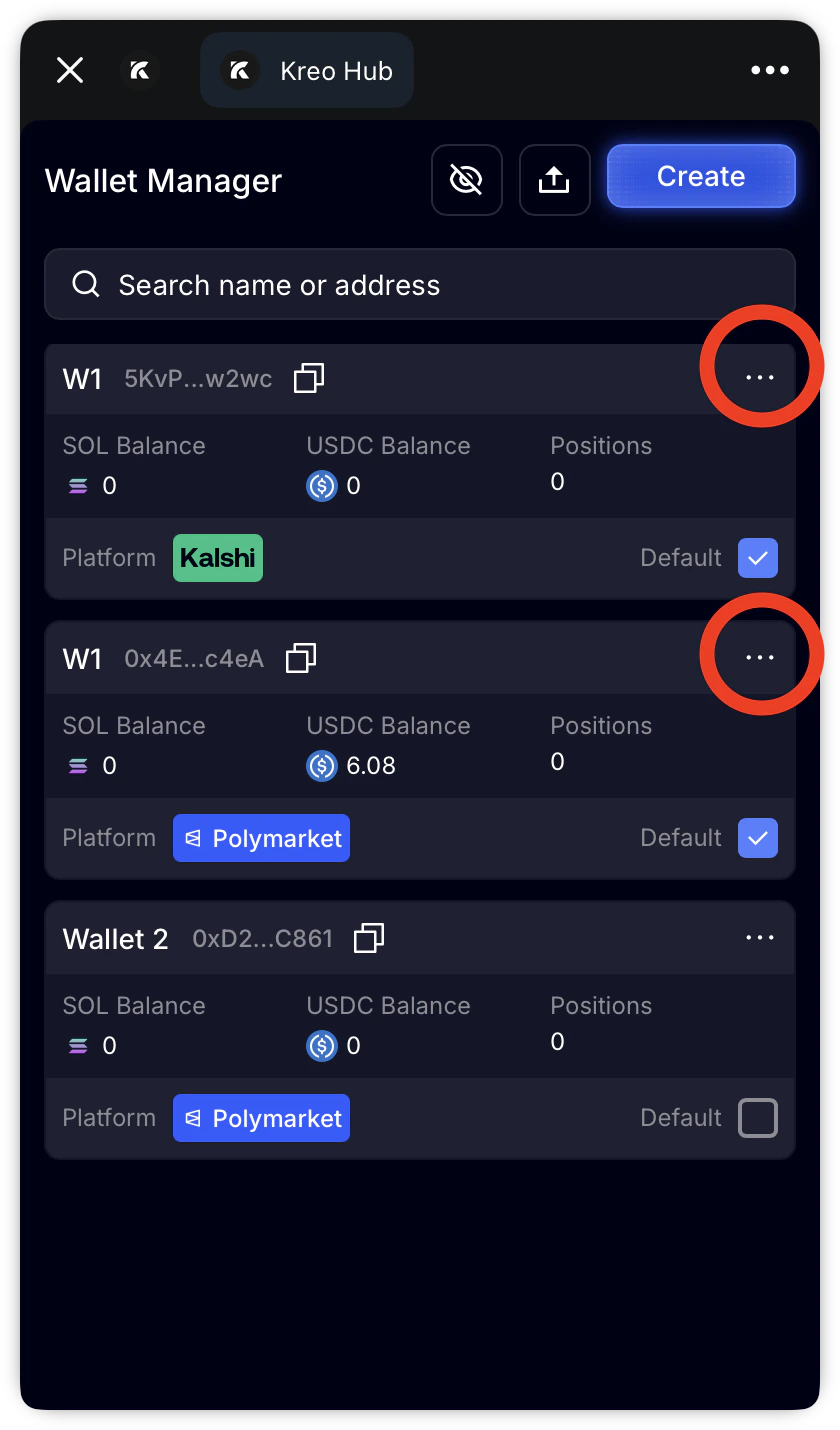
3. Open **Wallet Manager**
   <Frame>
     <img src="https://mintcdn.com/kreo/M2q5ujI7i0TLv2rl/images/Screenshot-2026-04-26-at-1.36.38-AM.png?fit=max&auto=format&n=M2q5ujI7i0TLv2rl&q=85&s=e415005ebdcbe093c3ecd4eab40f9369" alt="Screenshot 2026 04 26 At 1 36 38 AM" title="Screenshot 2026 04 26 At 1 36 38 AM" className="mx-auto" style={{ width:"55%" }} width="1180" height="1245" data-path="images/Screenshot-2026-04-26-at-1.36.38-AM.png" />
   </Frame>
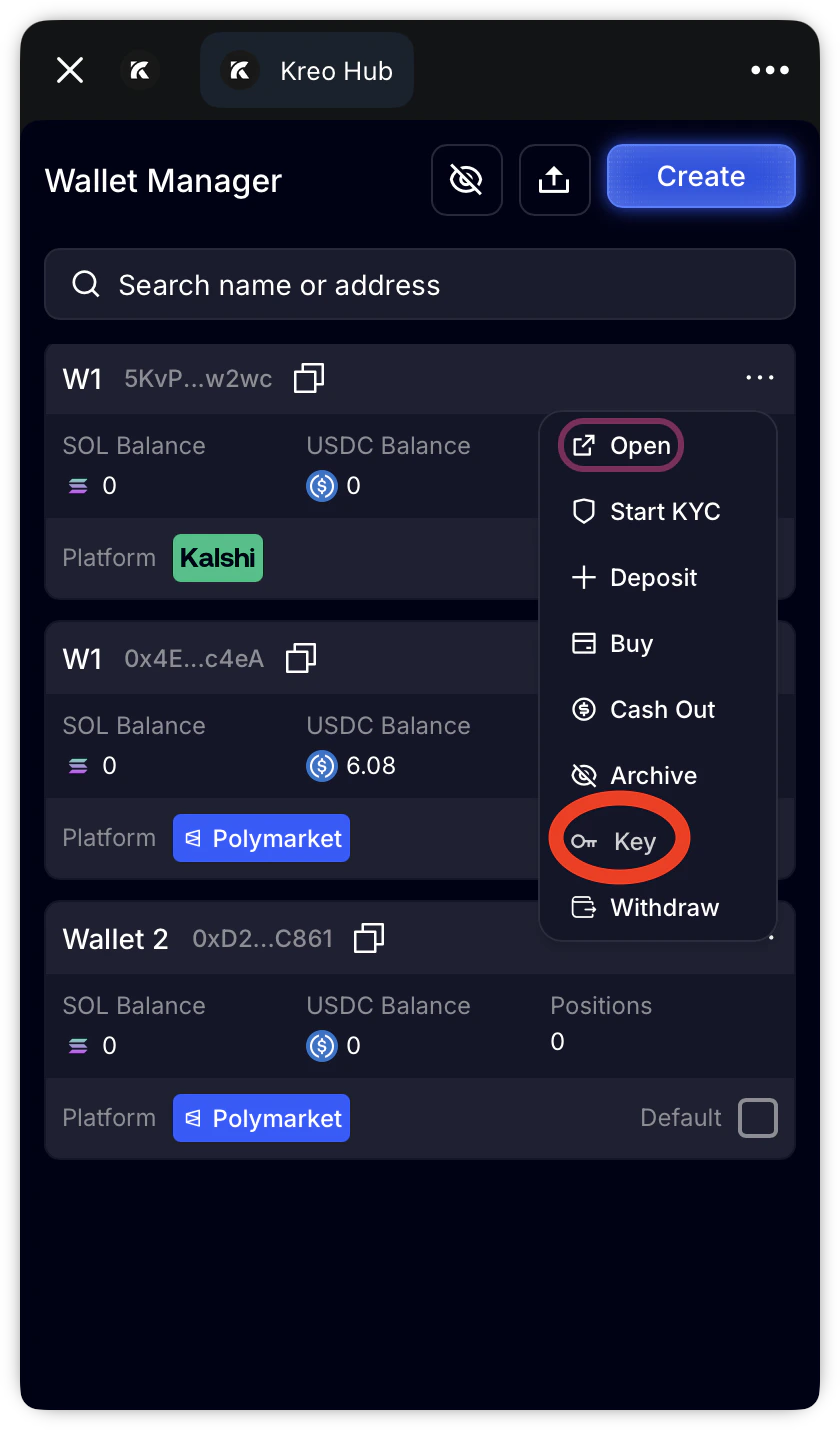
4. Tap the three dots on the wallet you want to export
   <Frame>
     <img src="https://mintcdn.com/kreo/M2q5ujI7i0TLv2rl/images/Screenshot-2026-04-26-at-1.38.12-AM.png?fit=max&auto=format&n=M2q5ujI7i0TLv2rl&q=85&s=f55d97789bd0fd5fff2536157e46d622" alt="Screenshot 2026 04 26 At 1 38 12 AM" title="Screenshot 2026 04 26 At 1 38 12 AM" className="mx-auto" style={{ width:"36%" }} width="840" height="1430" data-path="images/Screenshot-2026-04-26-at-1.38.12-AM.png" />
   </Frame>
5. Tap **Key**
   <Frame>
     <img src="https://mintcdn.com/kreo/M2q5ujI7i0TLv2rl/images/Screenshot-2026-04-26-at-1.40.02-AM.png?fit=max&auto=format&n=M2q5ujI7i0TLv2rl&q=85&s=8004e5bca5be4c97398b26f5cccc1828" alt="Screenshot 2026 04 26 At 1 40 02 AM" title="Screenshot 2026 04 26 At 1 40 02 AM" className="mx-auto" style={{ width:"36%" }} width="840" height="1430" data-path="images/Screenshot-2026-04-26-at-1.40.02-AM.png" />
   </Frame>
6. Your private key will be displayed, copy it and store it safely.

<Warning>
  * Only private key export is available — there is no seed phrase
  * The exported key is for the **owner wallet** — this controls your Kreo wallet and shows a different address. This is by design
  * You can import this key into MetaMask or Phantom to access your positions on Polymarket
  * **Never share your private key with anyone. Admins will never ask for it 🔐**
</Warning>